Release notes
You can download the iQ system software for your display from smarttech.com/downloads.
iQ 4.7.2 release notes
Release date: | July 23, 2026 |
Versions: | MX (V5): 4.7.2.8070 RX, MX (V5) Plus, and QX (V2) Pro: 4.7.2.9070 AM60: 4.7.2.7092 |
Summary | iQ 4.7.2 upgrades SMART Board displays to Android 15 and introduces new AI tools, including SMART Lasso and Ink to Shape. This release also adds per-profile Whiteboard settings, improved annotation tools, and new admin controls. iQ 4.7.2 is required to use the SMART MultiStylus and SMART SoundLift accessories. Notes
|
Expand the sections below to learn more about what’s new in this latest iQ 4 release.
SMART MultiStylus accessory kit
Highlights
SMART MultiStylus support: iQ 4.7.2 is required to use the SMART MultiStylus and the SMART Docking station. Once updated, users can customize pen button behavior and air mouse mode settings using the SMART MultiStylus app, including LED button actions, arrow buttons, eraser behavior, and custom ink colors.
Added laser pointer: Users can now program the LED button to act as a laser pointer when in air mouse mode.
Tool Explorer (V2) compatibility: The SMART MultiStylus docking station uses Tool Explorer (V2) technology, making SMART Board MX displays compatible with Tool Explorer (V2) tools such as stamps and cubes.
Known issues
Air mouse mode cannot control the mouse cursor on a connected computer running macOS, Linux, or ChromeOS. This feature currently only works within iQ and on a connected Windows computer.
SMART SoundLift
Highlights
SMART SoundLift support: iQ 4.7.2 is required to use the SMART SoundLift. Once updated, the wireless microphone receiver is recognized by the display and the paired lapel mic is accessible and selectable within Android apps.
SeeSMART SoundLift
Known issues
When voice amplification is enabled, high speaker volume can cause audio interference between the microphone and speakers. For best performance, keep the display’s speaker volume at 60% or lower.
Whiteboard
Highlights
Translate ink to text: You can translate text annotations in Whiteboard into 59 languages by using SMART’s secure local artificial intelligence tool. Turn on the translation toolbar in Whiteboard settings.
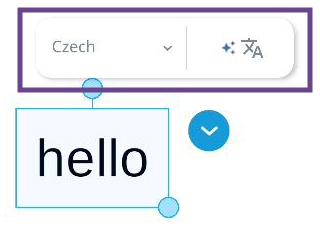
Sticky notes: You can create sticky notes on the whiteboard from the secondary toolbar.
Lines/arrows tool: Insert line annotations and set the line style. You can choose arrows, thickness, and color using the floating toolbar that appears next to the selected line.
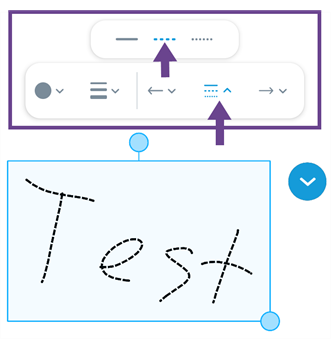
Floating toolbar for line objects: You can now more easily adjust the appearance of line objects using a floating toolbar that appears next to the selected object.
Improved video previews: When searching for videos to insert, you can now preview a video directly in its thumbnail before adding it to the whiteboard.
Google Slides integration: Save Whiteboards as Google Slides into your Google Drive for easy access and sharing.
Presentation clicker support: You can use a wireless presentation clicker, such as the SMART MultiStylus, to move forward and backward through whiteboard pages.
Ink to Shape pen: Draw any shape with this new pen and Whiteboard automatically converts your drawing to a clean shape annotation. Tap the shape to change its color or resize it.
Default preferences for each profile: Each SMART Account profile on the display can now save its own Whiteboard defaults. Set preferences for pen type, pen thickness, ink color, font style, and more. Your settings load automatically each time you sign in.
Updated canvas lock indicator: A new message below the toolbar replaces the previous border and banner when the canvas is locked. Tap the message to unlock, or move the toolbar to make it less accessible.
Resolved issues
Resolved an issue where Whiteboard stopped responding when iQ was configured for Shared Use mode.
Resolved an issue where measurement tools were inserted at the center of the canvas instead of the user’s current view point.
Resolved an issue where certain ReadyMade Content background images were removed when using the Clear All option, even though the backgrounds were locked.
Resolved an issue where the whiteboard toolbar did not appear when the display size setting was configured to the largest or second-largest option.
Resolved an issue where using palm erase closed the Whiteboard app unexpectedly when an AM60 was in use and an HDMI cable was plugged into some host panels’ ports.
Resolved an issue where Whiteboard closed unexpectedly when opening a Notebook file that contained tab characters.
Resolved an issue where the Japanese keyboard created only English characters.
Resolved an issue where text size changes were not saved after resizing text on the canvas.
Known issues
A student might be taken to a non-collaborative version of the whiteboard page if the teacher has set the Lesson Pacing to “Student”.
When the default save location is set to Lumio, it may take 5-10 seconds to open a new Whiteboard
Sometimes converting a page with a ready-made template into a Handout activity causes the whiteboard app to close unexpectedly.
When students join a Whole-class Whiteboard activity from their devices, annotations made with the equation editor don’t appear in the main display. In some cases, adding an equation may also cause the Whiteboard to close unexpectedly.
(SMART Board RX displays only) In some cases, the pen may not update to the new color you've selected. This can happen after a lot of writing and using undo/redo multiple times.
Sometimes, after opening a Lumio lesson in the whiteboard app, adding images to a page too quickly can cause them not to load properly.
If you open a Lumio file with an equation in the whiteboard app and then open the participation panel and click Start Session, the file may occasionally freeze or become unresponsive.
Ellipsis buttons appear disabled, but remain usable, although they can create issues with game-based activities.
Some parts of the Whiteboard interface may not be visible onscreen when the text or display size in Android is set to the two largest settings.
Text created with the Ink to Text tool becomes distorted after being resized.
The whiteboard may freeze when the Open File and Pen Tool buttons are pressed at the same time. Quit and reopen the app to restore functionality.
The whiteboard may freeze when dragging two or more sticky notes at one time.
Flipping between pages while a Shout-it-Out activity is running may cause the activity to give an error, or students may see a blank page. To clear this, open a new lesson, and then return to the prior lesson to continue.
Known incompatibilities
When opening a file in the Whiteboard app, if the file has any widgets added from iQ 3, these widgets will not appear.
Files library
Known issues
Sometimes, a PDF file is created when trying to copy a SMART Notebook file from Google Drive to a local folder location or copy a file between Google Drive folders.
SMART Mirror
Highlights
Refreshed interface: SMART Mirror now has an updated user interface with a cleaner, more modern look and feel. The refreshed design makes it easier to navigate and provides a more intuitive screen‑sharing experience.
AirPlay + Touchback: When sharing an iPad screen via AirPlay, users can now control the iPad directly from the SMART display—enabling interactive navigation, content advancement, and on-screen interaction without touching the iPad.
Note
AirPlay + Touchback is available on iPad OS 26.4+ only. Configure the iPad for Touchback before using
SeeSMART Mirror
Settings
Highlights
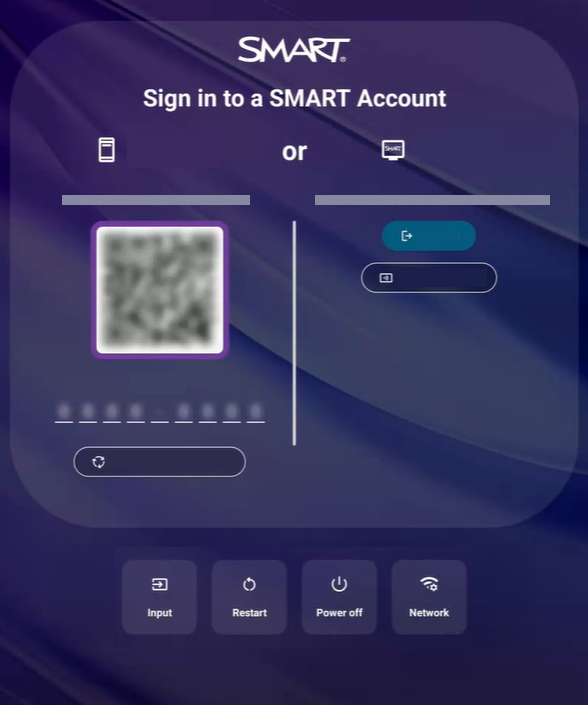
Remove access to public profile: There is a new setting that enables admins to remove access to the public profile and require that all users sign into a SMART Account to use the display. The setting is located in the SMART section. Admins can optionally allow guest users to use the display temporarily with a Guest profile. All user data is removed at the end of the session.
Known issues
Automatic sign-out may stop working after you disable and then re-enable the Automated sign-out options setting. To work around this, change the sign-out timer to a different value and then set it back to the value you want.
SMART Tools & Utilities
Highlights
Annotate in Multi-Window and Split Screen: Android 15 lets you ink across different app layouts such as split screen.
Here is how this inking works:
Dynamic activation: If the first app you ink on supports native ink, like the Whiteboard or Lumio, you ink directly in the app. If the first app you ink in does not support native ink, like Chrome, the ink overlay layer appears.
Always on top: The ink overlay layer stays on top of all apps after it is active. All ink goes to the overlay layer, even if you write on an app that supports native ink. Dismiss the overlay layer to return to native ink.
Notes
Native inking works only when the input source is full screen.
If the input is in split screen, a window, or a grid, the ink overlay layer starts.
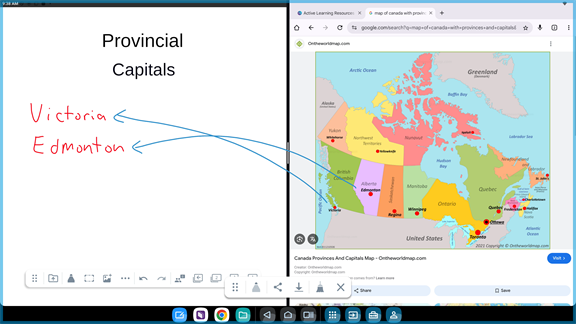
Ink overlay visibility: A highlighted frame around the annotation area now clearly identifies when the ink overlay layer is active.
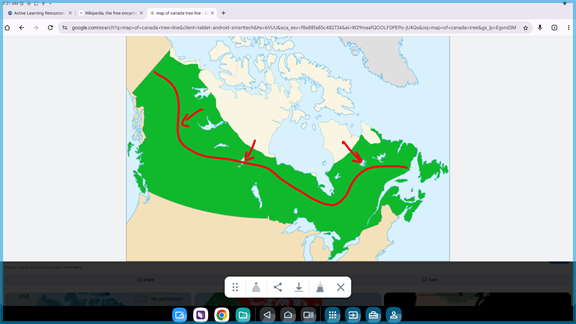
Annotation highlighter: The highlighter pen is now available in the iQ annotation tool.
SMART Lasso: Use your finger or pen to circle anything on screen using the new security-first on-edge AI-enabled tool, including content from a connected computer, to search Google or expand on it using AI with Google Gemini.
Share over Freeze Frame: You can now share content via a SMART Share QR code directly from the annotation toolbar while inking over Freeze Frame.
System software
Highlights
Android 15 operating system: Android 15 is the latest version of the Android operating system for the SMART Board intended to extend the functional lifespan of the display with new features and updates.
Google Gemini: This is the default digital assistant on SMART Board MX (V5), MX (V5) Plus, RX, and QX (V2) Pro series displays when you sign in with a Google account. Google Gemini is not included on the AM60 but can be installed from the Google Play Store.
Additional Google apps: Google Slides, Docs, Sheets, Earth, Classroom, Live Transcribe, and Translate are now bundled with iQ in addition to the previously included Google apps.
Faster sign-in with a SMART Account: New SMART Account users will no longer see the setup wizard when they first create their profile on a display. The setup wizard can be reenabled in Settings or using a remote exec command via SRM or SMART Control.
Display-only mode: Organizations can now configure supported displays to bypass embedded Android and use connected computers exclusively. Available on SMART Board MX (V5), MX (V5) Plus, RX, and QX (V2) Pro series displays.
Remove access to public profile:Admins can remove access to the public profile and require that all users sign into a SMART Account to use the display, ensuring all activity on the display is done securely within a user’s private profile. Admins can still allow guest users to use the display temporarily with a Guest account. All user data is removed at the end of the guest user session.
Restrict SMART Account sign-in to approved domains: Admins can now limit which domain names are permitted to sign in to iQ with a SMART Account, giving organizations greater control over display access.
Freeform windowed apps (Beta): Turn on Android's Freeform feature to use apps in floating, resizable windows. This feature is in beta, and some apps and features may not work as expected.
Diagnostic and logging controls: Admins can turn on diagnostic and logging features to help with troubleshooting. The data is not sent to the cloud or shared with SMART automatically.
Resolved issues
Resolved an issue where, on SMART Board RX series displays, the microphone mute button on the convenience panel could become unresponsive when a computer was connected to the USB-C1 port without an external power source.
Resolved an issue where, on macOS, touch input on the panel could pass through to a connected device when using Curtain or Freeze Frame while the macOS device was connected through USB-C or HDMI.
Resolved an issue where Android Quick Share stopped working after a user signed out.
Resolved an issue where, on SMART Board MX (V5) series displays, ink could intermittently fail to appear when writing and erasing at the same time.
Resolved an issue where touch and pen sometimes did not work when a SMART AM60 appliance was inserted into a SMART Board 6000 series display.
Resolved an issue where the Microsoft Teams app version 1416/1.0.0.2026015202 or newer could not use connected USB webcams.
Resolved an issue where the external Ethernet port did not appear in network settings on an AM60 appliance connected to an MX (V4) host panel.
Known issues
When the display is waking up from sleep, switching to the Home screen can sometimes take several seconds to load.
The Japanese IME on-screen keyboard creates English characters.
In the Chrome browser app, microphone audio may occasionally sound choppy when recording from a website.
In some cases, the display does not enter sleep mode when external devices (for example, laptops or webcams) are connected.
For system stability, when using the display with an HDMI-CEC peripheral, the display should be set to the iQ experience as the default input.
Repeatedly moving the PIP app window to the top of the screen and opening the Android notification center may result in touch issues.
In rare instances while the display is in Shared Use mode, the volume buttons on the convenience panel may not respond. The onscreen volume control continues to work. Rebooting the display resolves the issue.
After rebooting a connected AM60, a SMART Board Mini interactive podium may show a no-signal message on the OPS input. Switching to another input and then switching back resolves the issue.
A SMART Board Mini can't turn on or wake up an AM60 appliance. Press the power button on the AM60 to turn it on or wake it up.
A SMART Board 7000 series display can't turn on or wake up an AM60 appliance. Press the power button on the AM60 to turn it on or wake it up.
On AM60, touch may occasionally be unavailable on the HDMI input. Rebooting the AM60 typically restores touch functionality.
On AM60, touch may stop working when you sign in to a website that requires an external authenticator, such as a FIDO2 or WebAuthn security key, for multifactor authentication. This most often occurs on SMART Board 6055i displays. Connect an external mouse to interact with the display until touch is restored.
While on an external input on AM60, touch may interact with content on the external input itself when you open the iQ navigation bar.
Occasionally, a "TouchPanel isn't responding" error message appears and touch stops working on an external input connected directly to the AM60. As a workaround, connect the external input to the host display instead.
An AM60 appliance's onboard and external Ethernet port identifiers might swap after updating to iQ 4.7.2. If the network relies on persistent interface names, a connected cable might receive the other port's network settings instead of its own.
The Gemini app doesn't come pre-installed on AM60 appliances running iQ 4.7.2.
When using an external input, such as HDMI or USB-C, and the microphone array is muted, sound may not play through the onboard speakers. To restore sound, press the mic mute button on the convenience panel to unmute the microphone array.
Known incompatibilities
ARC and eARC soundbars might not work when connected to the HDMI4 port. Instead, connect these devices to HDMI2 for best compatibility.
On SMART Board MX (V5) and RX series displays, computers connected to the VGA port will not be able to use USB peripherals (such as USB drives) connected to the display. Connect computers using HDMI or USB-C to access USB peripherals on the computer.
Shared Access mode cannot be used with Android Enterprise’s Work profiles as they are mutually exclusive features. Shared Access mode will be removed if an admin enrolls the display into Android Enterprise, such as Microsoft InTune, and enables the Work Profiles feature.
SMART Remote Management
Resolved issues
Resolved an issue where the display saved the previous Wi-Fi network after successfully switching to a new one.
Resolved an issue where the “
smartcli networking wifi” command did not work, which prevented admins from controlling MAC address randomization.Resolved an issue where devices sometimes could not be removed from the SMART Remote Management (SRM) web portal.
Known issues
SMART Remote Management might not report Wi-Fi SSIDs, even if the connection is still active on the display.
After stopping a scheduled command, the display might still execute the command when additional users sign in.
The SMART Board tab on the Device Info page is missing some information, and the titles are cut off on the page.
Known incompatibilities
SMART Remote Management might not be able to install application packages from the Play Store if the package provided by Google is a split APK.
The "Device Name" syncs only to the remote management console when the device is first enrolled, and changes made to the devices name from the remote management console does not sync to the device.
 Previous releasesiQ 4.6.2 release notes
Release date: | March 31, 2026 |
Versions: | AM60: 4.6.2.7058 MX (V5): 4.6.2.8058 RX, MX (V5) Plus, and QX (V2) Pro: 4.6.2.9058 |
Summary | iQ 4.6.2 introduces new whiteboard tools and sharing options, including sticky notes and Google Slides integration, along with reliability and usability improvements across Whiteboard and system software. This version also includes security updates and bug fixes to improve compatibility with various HDMI peripherals. |
Expand the sections below to learn more about what’s new in this latest iQ 4 release.
Whiteboard
Highlights
Translate ink to text: You can translate text annotations in Whiteboard into 59 languages by using SMART’s secure local artificial intelligence tool. Turn on the translation toolbar in Whiteboard settings.
Sticky notes: You can create sticky notes on the whiteboard from the secondary toolbar.
Lines/arrows tool: Insert line annotations and set the line style. You can choose arrows, thickness, and color using the floating toolbar that appears next to the selected line.
Improved video previews: When searching for videos to insert, you can now preview a video directly in its thumbnail before adding it to the whiteboard.
Google Slides integration: Save Whiteboards as Google Slides into your Google Drive for easy access and sharing.
Presentation clicker support: You can use a wireless presentation clicker, such as the SMART MultiStylus, to move forward and backward through whiteboard pages.
Resolved issues
Whiteboard stopped responding when iQ was configured for Shared Use mode.
Measurement tools were inserted at the center of the canvas instead of the user’s current view point.
Certain Ready-Made Content background images were removed when using the Clear All option, even though these backgrounds were locked.
The whiteboard toolbar did not appear when the display size setting was configured to the largest or second-largest option.
When using an AM60 and an HDMI cable is plugged into some host panels’ ports, using palm erase caused the Whiteboard app to crash.
Known issues
A student might be taken to a non-collaborative version of the whiteboard page if the teacher has set the Lesson Pacing to “Student”.
When the default save location is set to Lumio, it may take 5-10 seconds to open a new Whiteboard
Sometimes converting a page with a ready-made template into a Handout activity causes the whiteboard app to close unexpectedly.
When students join a Whole-class Whiteboard activity from their devices, annotations made with the equation editor don’t appear in the main display. In some cases, adding an equation may also cause the Whiteboard to close unexpectedly.
(SMART Board RX displays only) In some cases, the pen may not update to the new color you've selected. This can happen after a lot of writing and using undo/redo multiple times.
Sometimes, after opening a Lumio lesson in the whiteboard app, adding images to a page too quickly can cause them not to load properly.
If you open a Lumio file with an equation in the whiteboard app and then open the participation panel and click Start Session, the file may occasionally freeze or become unresponsive.
Ellipsis buttons appear disabled, but remain usable, although they can create issues with game-based activities.
The Japanese keyboard creates only English characters in the Whiteboard.
Some parts of the Whiteboard interface may not be visible onscreen when the text or display size in Android is set to the two largest settings.
Text created with the Ink to Text tool becomes distorted after being resized.
The whiteboard may freeze when the Open File and Pen Tool buttons are pressed at the same time. Quit and reopen the app to restore functionality.
Known incompatibilities
When opening a file in the Whiteboard app, if the file has any widgets added from iQ 3, these widgets will not appear.
SMART Tools & Utilities
Resolved issues
When using an AM60 and an HDMI cable is plugged into some host displays’ ports, using palm erase can cause the Whiteboard app to crash.
System software
Highlights
Security updates and certificates installed: This release includes the following security updates:
New SMART Account users get started faster, as Google sign-in and PIN setup screens no longer appear when creating a profile on a display for the first time.
On the SMART Board MX (V5), RX, and QX (V2) Pro series displays, switch off the display’s mic array noise suppression feature in Sound input. This will resolve issues where the mic array does not capture all audio input.
On the SMART Board MX (V5), RX, and QX (V2) Pro series displays, you can now configure the HDMI port’s maximum resolution. Reducing the maximum resolution may improve compatibility and performance when the display is used with cables, peripherals, or setups that are not HDMI compliant. This replaces the setting to configure the ports’ HDMI version from iQ 4.6.1 or earlier.
Note
This update may cause a one‑time display setup on the connected computer, which is resolved by reselecting duplicate or extend in the computer’s Display settings.
SeeHDMI input
Resolved issues
On SMART Board RX series displays, the microphone mute button on the convenience panel could become unresponsive when a computer was connected to the USB C1 port without an external power source.
Audio artifacts could occur when capturing audio from the built in mic array on SMART Board MX (V5) Plus, RX, and QX (V2) Pro series displays.
SMART Share crashed in certain apps when attempting to share content that was not files.
Signed in users couldn’t pair new Bluetooth devices. Bluetooth devices had to be paired before signing in.
Touch interacted with content underneath Curtain or Freeze screen when on an external input.
SMART Share continued to share content after the share QR code expired.
SMART Board displays could not connect to hidden Wi-Fi networks.
An AM60 appliance might not start properly when connected to SMART Board MX (V3), MX (V4), 6000S, or QX Pro series displays during power on, wake from sleep, or input switching. The screen could remain black or display a persistent Connecting message.
Room control commands stopped working after the display woke up from Standby.
Signing in for the first time took over 4 minutes when the Google Play Store was disabled.
A black screen was displayed when switching to external inputs after signing out of a SMART Account.
The built in mic array did not capture all audio input on SMART Board MX (V5), RX, and QX (V2) Pro series displays. Audio input is now captured reliably when Suppress background sounds from builtin mic array is switched off.
Added the ability to configure each HDMI port’s maximum resolution on SMART Board MX (V5), RX, and QX (V2) Pro series displays (Settings > Display). Reducing the maximum resolution can improve compatibility and performance when using non HDMI compliant cables, peripherals, or setups. This replaces the HDMI version configuration available in iQ 4.6.1 and earlier.
Known issues
When the display is waking up from sleep, switching to the Home screen can sometimes take several seconds to load.
The Japanese IME on-screen keyboard creates English characters.
In the Chrome browser app, microphone audio may occasionally sound choppy when recording from a website.
In some cases, the display does not enter sleep mode when external devices (for example, laptops or webcams) are connected.
For system stability, when using the display with an HDMI-CEC peripheral, the display should be set to the iQ experience as the default input.
Known incompatibilities
ARC and eARC soundbars might not work when connected to the HDMI4 port. Instead, connect these devices to HDMI2 for best compatibility.
On SMART Board MX (V5) and RX series displays, computers connected to the VGA port will not be able to use USB peripherals (such as USB drives) connected to the display. Connect computers using HDMI or USB-C to access USB peripherals on the computer.
Shared Access mode cannot be used with Android Enterprise’s Work profiles as they are mutually exclusive features. Shared Access mode will be removed if an admin enrolls the display into Android Enterprise, such as Microsoft InTune, and enables the Work Profiles feature.
SMART Remote Management
Highlights
Update: Update to SMART Remote Management 25.11.7.688.
RemoteExec power‑state configuration: On SMART Board MX (V5), RX, and QX (V2) Pro series displays, IT administrators can configure whether enter standby or soft off when transitioning to a lower power state, helping standardize power behavior across managed environments.
Resolved issues
Devices that reset through the management portal did not consistently re-enroll. Devices now automatically re-enroll after reboot, ensuring they return to a managed state.
Devices that manually reset through system settings did not re-enroll as expected. When the authentication token is reset in the portal, devices now automatically re-enroll after a manual factory reset.
Remote app uninstall commands applied only to the active user profile. Remote uninstallation commands from the portal now apply to all user profiles on the device.
Authentication tokens were not always fully reset during a wipe command. Tokens are now correctly reset, preventing stale data from affecting new device enrollments.
Known issues
SMART Remote Management might not report Wi-Fi SSIDs, even if the connection is still active on the display.
After stopping a scheduled command, the display might still execute the command when additional users sign in.
The SMART Board tab on the Device Info page is missing some information, and the titles are cut off on the page.
Known incompatibilities
SMART Remote Management might not be able to install application packages from the Play Store if the package provided by Google is a split APK.
The "Device Name" syncs only to the remote management console when the device is first enrolled, and changes made to the devices name from the remote management console does not sync to the device.
iQ 4.6.1 release notesRelease date: | December 5, 2025 |
Versions: | AM60: 4.6.1.7092 MX (V5): 4.6.1.8086 RX, MX (V5) Plus, and QX (V2) Pro: 4.6.1.9086 |
Summary | 4.6.1 introduces new features to improve interactivity and simplify meetings. You can now customize the appearance of line objects in the whiteboard, and preview a video directly in its thumbnail before adding it to the whiteboard. With a SMART OneLaunch license, you can join meetings in Microsoft Teams, Zoom, Google Meet, or Webex directly on your interactive display with just a tap. |
Expand the sections below to learn more about what’s new in this latest iQ 4 release.
Whiteboard
Highlights
Floating toolbar for line objects: You can now easily adjust the appearance of line objects using a floating toolbar that appears next to the selected object.
Improved video previews: When searching for videos to insert, you can now preview a video directly in its thumbnail before adding it to the whiteboard. Previously, previews opened full screen, requiring you to close the preview and restart your search. With the new inline preview, you can watch and insert videos more quickly without losing your place in the search results.
Resolved issues
- A black screen no longer covers the loading screen when creating a new Lumio file.
Resolved an issue where the Whiteboard app could become slow or unresponsive when using the color wheel.
Resolved an issue where text in Lumio lessons displayed offset in an incorrect location.
Resolved an issue where a Lumio file would sometimes freeze or become unresponsive after opening it with an equation in the whiteboard app and then opening the participation panel and clicking Start Session.
Resolved an issue where images in a Lumio file might be invisible or missing if you exit the file or convert a page before the file is finished uploading.
Resolved an issue where ellipsis buttons appeared disabled, but remained usable, and could create issues with game-based activities.
Known issues
Due to search quota limits imposed by our provider, YouTube, video search functionality in the Whiteboard app may not work as expected at this time. We are actively working with YouTube to increase these limits and are currently awaiting approval. In the meantime, we’ve documented available workarounds, such as sharing from the YouTube app and other alternatives, to help teachers continue accessing video content while working in the Whiteboard app.
A student might be taken to a non-collaborative version of the whiteboard page if the teacher has set the Lesson Pacing to “Student”.
When students join a Whole-class Whiteboard activity from their devices, annotations made with the equation editor don’t appear in the main display. In some cases, adding an equation may also cause the Whiteboard to close unexpectedly.
Sometimes when converting a page with a ready-made template in it to a Handout activity causes the whiteboard app to close unexpectedly.
Equations added by Lumio sometimes show as gray placeholder boxes in the Whiteboard.
The Whiteboard may freeze when the Open File and Pen Tool buttons are pressed simultaneously. Closing the Whiteboard and reopening it will resolve the issue.
Some parts of the Whiteboard interface may not be visible onscreen when the text or display size in Android is set to the two largest settings.
The Japanese keyboard creates only English characters in the Whiteboard.
When the default save location is set to Lumio, it may take 5-10 seconds to open a new Whiteboard.
When you tap the text icon on a floating toolbar to open a text box, sometimes the onscreen keyboard does not display.
Known incompatibilities
When opening a file in the Whiteboard app, if the file has any widgets added from iQ 3, these widgets will not appear.
SMART OneLaunch
Highlights
Education essentials with SMART OneLaunch: Now available on iQ 4 for education, SMART OneLaunch is a new software solution that simplifies meetings on Microsoft Teams, Zoom, Google Meet, or Webex. Join meetings directly on your interactive display with just a tap—no hubs, external computers or complex setups required. In addition to the existing app-drawer and widget options, Education users can now add OneLaunch through the Home Screen setup experience. A 30-day trial can be started when the display is registered in Airtame Cloud; ongoing use requires a valid OneLaunch license.
Update: Update to SMART OneLaunch 6.7.4.
SeeSMART One Launch
SMART Mirror
Highlights
Updated to SMART Mirror 4.49: SMART Mirror 4.49: This release introduces enhancements to SMART Mirror such as screen share previews for moderators, improved connection stability, and multitouch gesture support for touchback. Users will also benefit from better broadcast performance, more reliable AirPlay discovery, and full keyboard navigation for improved accessibility.
SeeSMART Mirror
SMART Control
Highlights
NEW - SMART Control: Now available for iQ 4, this release launches SMART Control, a new cloud-based alerts integration system for SMART devices. With SMART Control, iQ customers can now connect their boards to popular mass-communication systems—including InformaCast, Centegix, Audio Enhancement, and Alertus—to enable rapid targeted visual alerts and emergency messaging across your campus.
SeeSMART Control
SMART Tools & Utilities
Highlights
Improved screen recording: Improved screen recording now includes a visual countdown to clearly indicate when a recording is starting, on-screen controls so users can see how to stop a recording that’s in progress, and a notification when a recording is finished that shows the location of the saved file.
Resolved issues
Resolved an issue where after updating the display to iQ 4.6.0, screen recording was unable to capture audio from the display or a connected microphone when a user is signed in.
System software
Highlights
Security updates and certificates installed: This release includes the following security updates:
Resolved issues
Resolved an issue where touch would sometimes not work on external inputs connected to an AM60.
Resolved an issue where touch would sometimes not work on the iQ 4 (AM60) input after a SMART Board MX (V2), 6000S, or 7000 (V2) series display woke from sleep.
Resolved an issue where on AM60 devices, the date and time would not update to the selected one.
Resolved an issue where the on-screen keyboard did not appear when trying to rename app groups on the home screen.
Resolved an issue where audio was not output to sound bars connected through the HDMI-ARC port on some displays.
On the AM60 OPS appliance, resolved interoperability and compatibility issues with some non-HDMI-compliant equipment, where there was no display due to the presentation of invalid EDID information.
A black screen is no longer showing when restarting the display with Android’s Bedtime mode enabled.
Resolved no video, wrong video resolution, and compatibility issues on SMART Board MX-V5, MX-V5 Plus, RX, and QX-V2 Pro series displays when a device is connected to HDMI1.
Resolved stability issues on SMART Board MX-V5, MX-V5 Plus, RX, and QX-V2 Pro series displays when the display wakes up from standby.
Resolved stability issues when switching inputs on an AM60 OPS appliance.
Resolved an issue where connected HDMI-CEC devices sometimes could not wake up the display.
Resolved an issue on the AM60 OPS appliance where there was no audio from external devices within the PIP app.
Resolved an issue on the AM60 OPS appliance where swiping up from the bottom of the display did not bring up the navigation bar after switching to an external input connected to the AM60 or to the host display.
Known issues
When the display is waking up from sleep, switching to the Home screen can sometimes take several seconds to load.
The Japanese IME on-screen keyboard creates English characters.
Signed in users cannot pair new Bluetooth devices. Bluetooth devices must be paired to the display before to signing in.
In the Chrome browser app, microphone audio may occasionally sound choppy when recording from a website.
In some cases, the display does not enter sleep mode when external devices (for example, laptops or webcams) are connected.
For system stability, when using the display with an HDMI-CEC peripheral, the display should be set to the iQ experience as the default input.
On SMART Board RX series displays, the microphone mute button on the convenience panel may become unresponsive when a computer is connected to the USB-C1 port without an external power source. Unplugging the computer restores functionality.
In rare occasions, there are audio artifacts when capturing audio from the display’s mic array on a SMART Board MX-V5 Plus, RX, or QX-V2 Pro series display. Reboot the display to resolve this issue.
Known incompatibilities
ARC and eARC soundbars might not work when connected to the HDMI4 port. Instead, connect these devices to HDMI2 for best compatibility.
On SMART Board MX (V5) and RX series displays, computers connected to the VGA port will not be able to use USB peripherals (such as USB drives) connected to the display. Connect computers using HDMI or USB-C to access USB peripherals on the computer.
Shared Access mode cannot be used with Android Enterprise’s Work profiles as they are mutually exclusive features. Shared Access mode will be removed if an admin enrolls the display into Android Enterprise, such as Microsoft InTune, and enables the Work Profiles feature.
SMART Remote Management
Highlights
Update: Update to SMART Remote Management 25.11.6.932.
Resolved issues
Resolved an issue where the command to install a Wi-Fi certificate with a private key in Repository Actions > Device settings failed to install the certificate on the display.
Resolved an issue where the SMART Remote Management admin console could not clear an app’s data and cache from a display configured to be in Shared Use mode.
Known issues
SMART Remote Management might not report Wi-Fi SSIDs, even if the connection is still active on the display.
After stopping a scheduled command, the display might still execute the command when additional users sign in.
The SMART Board tab on the Device Info page is missing some information, and the titles are cut off on the page.
Known incompatibilities
SMART Remote Management might not be able to install application packages from the Play Store if the package provided by Google is a split APK.
The "Device Name" syncs only to the remote management console when the device is first enrolled, and changes made to the devices name from the remote management console does not sync to the device.
iQ 4.6 release notesRelease date: | September 22, 2025 |
Versions: | AM60: 4.6.0.7074 MX (V5): 4.6.0.8076 RX, MX (V5) Plus, and QX (V2) Pro: 4.6.0.9076 |
Summary | iQ 4.6 introduces new features to enhance flexibility, security, and interactivity. You can now access your Google Drive files on any SMART Board running iQ 4.6 simply by signing in to your SMART Account—no extra steps needed. The ink overlay can be accessed across all apps and inputs, making it easier to annotate on anything. The whiteboard app sees key updates, including improved accessibility, new Canadian and Euro currency manipulatives, and shape formatting options. New Admin controls include expanded settings lockdown options. As iQ 4.6 installs the optional 4.5 SP1 release, be sure to also check out what was added in that release. iQ 4.5 SP1 included a key admin update fore shared spaces: shared access mode. Other new user features include file sharing via QR code and new whiteboard tools like pen styles, vertical toolbar orientation, and canvas lock. Complete details can be found below. Note This release replaces the previous 4.6 release posted August 13, 2025 to provide an important fix for the image search in the whiteboard. |
Expand the sections below to learn more about what’s new in this latest iQ 4 release.
Whiteboard
Highlights
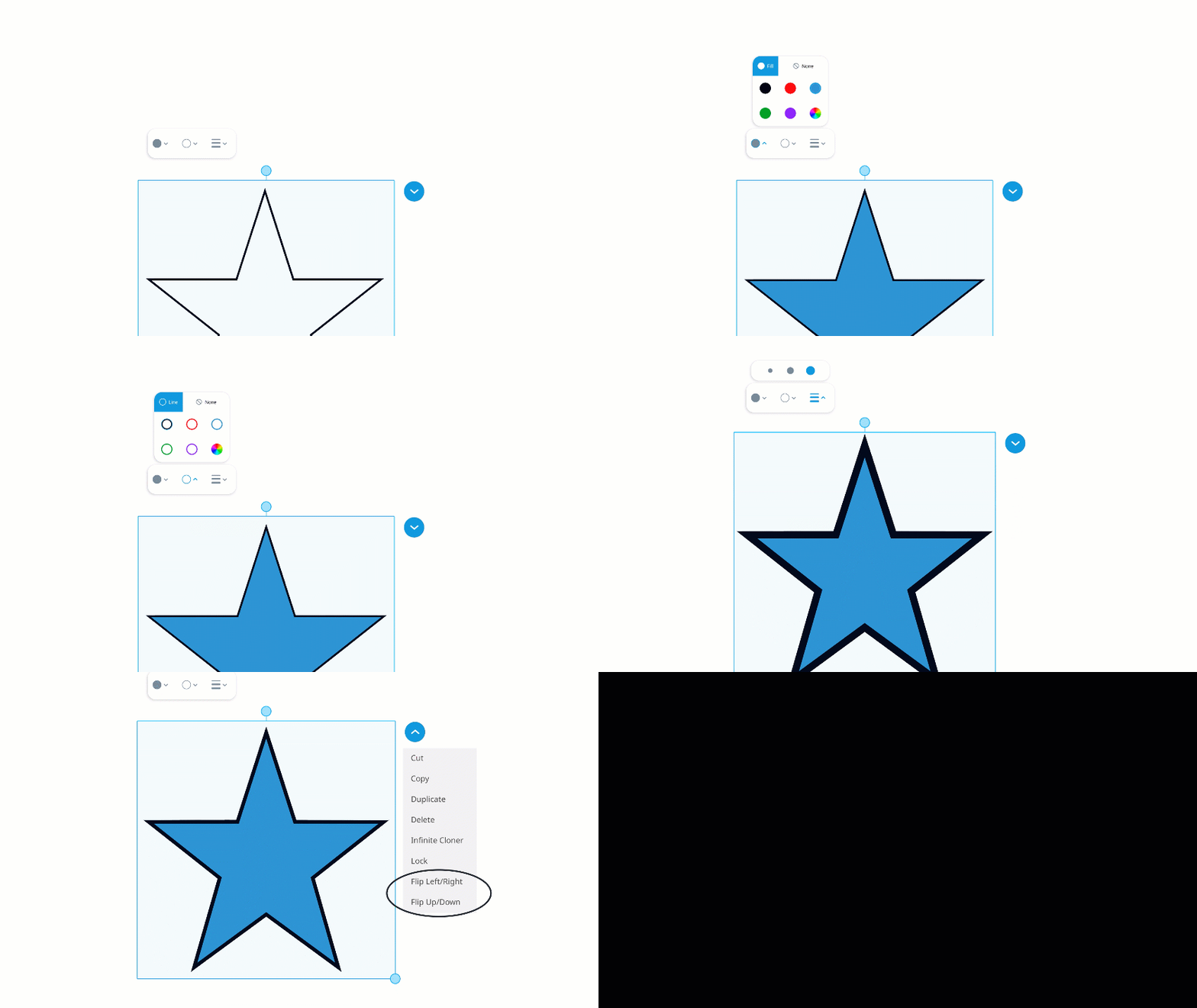
New shape formatting and orientation options: Quickly adjust your design by selecting a shape or group of shapes to change the outline color, fill color, or outline thickness. You can now also flip shapes horizontally or vertically.
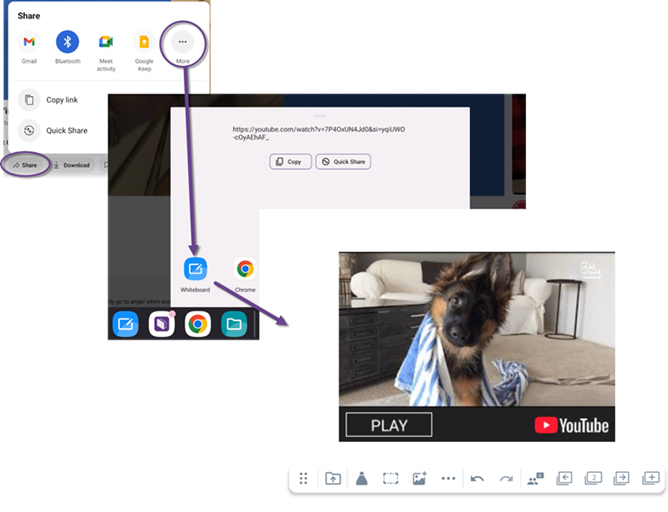
Share from YouTube to insert videos into the whiteboard app: You can now share a YouTube video directly into the whiteboard app using the Share option in the YouTube player. The video will be added to the current page of your open whiteboard file, or to a new file if none is open.
New Canadian and Euro currency manipulatives: Use coins to teach counting, addition, subtraction, and other hands-on math activities with updated Canadian and Euro currency options.
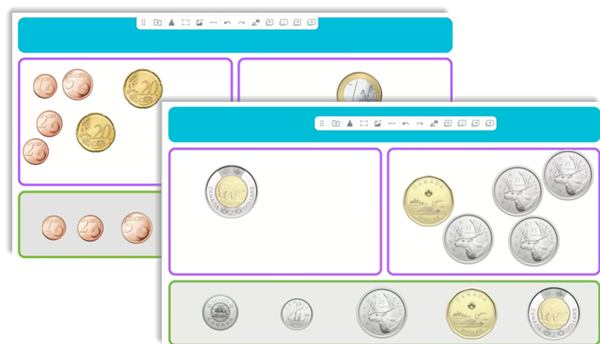
Improved accessibility with TalkBack support: The whiteboard app supports Android’s TalkBack screen reader, making it easier for all users to navigate and participate. Toolbar buttons are supported, and teachers can deliver pre-created content using TalkBack for a more inclusive classroom experience.
Resolved issues
Resolved an issue where some image and video searches in the Whiteboard did not return results when using non-English languages.
Resolved an issue where text in Lumio lessons appeared misaligned when opened in the Whiteboard app.
Known issues
Due to search quota limits imposed by our provider, YouTube, video search functionality in the Whiteboard app may not work as expected at this time. We are actively working with YouTube to increase these limits and are currently awaiting approval. In the meantime, we’ve documented available workarounds, such as sharing from the YouTube app and other alternatives, to help teachers continue accessing video content while working in the Whiteboard app.
A student might be taken to a non-collaborative version of the whiteboard page if the teacher has set the Lesson Pacing to “Student”.
Rarely, when creating a Lumio file for the first time after waking the display, the Whiteboard app may fail to open, close unexpectedly, or remain stuck loading without showing a “No network” message.
Sometimes when converting a page with a ready-made template in it to a Handout activity causes the whiteboard app to close unexpectedly.
The Whiteboard app may close unexpectedly when using split-screen mode with some apps.
If you open a file from a USB drive and remove the drive before closing the file, it might save as empty and lose all its content.
When students join a Whole-class Whiteboard activity from their devices, annotations made with the equation editor won’t appear on the main display. In some cases, adding an equation may also cause the whiteboard to close unexpectedly.
(For SMART Board RX displays) In some cases, the pen may not update to the new color you've selected. This can happen after a lot of writing and using undo/redo multiple times.
Sometimes, after opening a Lumio lesson in the whiteboard app, adding images to a page too quickly can cause them not to load properly.
If you open a Lumio file with an equation in the whiteboard app and then open the participation panel and click Start Session, the file may occasionally freeze or become unresponsive.
Ellipsis buttons appear disabled, but remain usable, although they can create issues with game-based activities.
Images in a Lumio file might be invisible or missing if a user exits the file or converts a page before the file is finished uploading.
Known incompatibilities
When opening a file in the Whiteboard app, if the file has any widgets added from iQ 3, these widgets will not appear.
Files library
Highlights
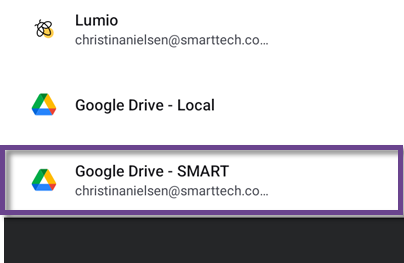
Access your Google Drive automatically on any SMART Board: Link your SMART Account to your Google Drive, and your cloud files will follow you to any SMART Board with iQ 4.6 or later. Simply sign in to your SMART Account and your Google Drive content will appear automatically. No need to sign in separately to your Google Drive in the Files Library.
Known issues
Sometimes, a PDF file is created when trying to copy a SMART Notebook file from Google Drive to a local folder location or copy a file between Google Drive folders..
Known incompatibilities
Google Workspace users will not be able to use the Google Drive integration within the Files Library app if the Workspace admin has disabled access to Google Drive. Users will be able to sign in to their Google account from the Files Library, but the Files Library will not open their Google Drive. Users should ask the Google Workspace admin to enable access to Google Drive for their account.
Lumio app
Highlights
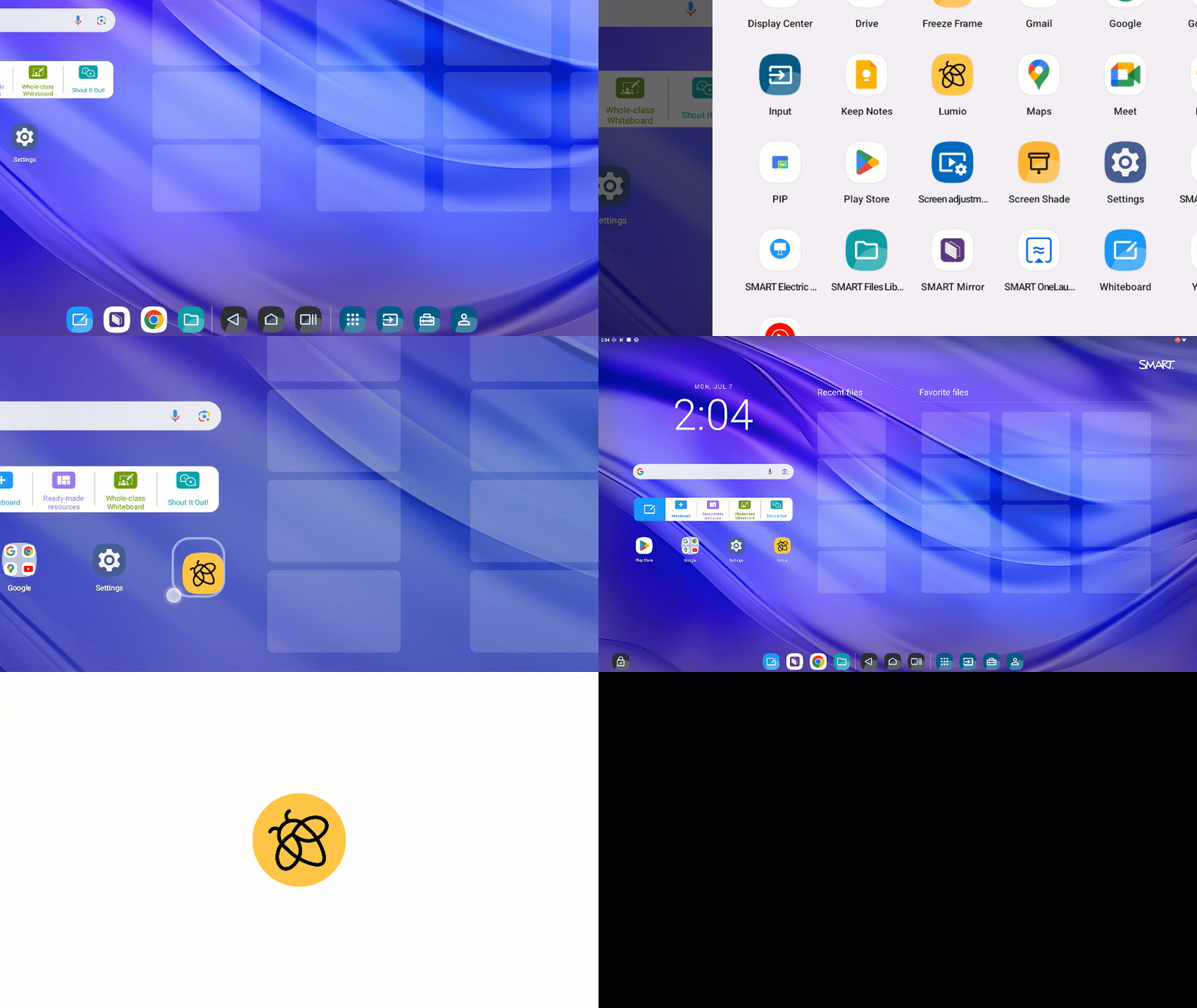
Access Lumio directly from your display with the new Lumio app: The new Lumio app provides quick, convenient access to your Lumio files and all the features you're used to—right from the display. If you're familiar with using Lumio in a browser, you'll find a consistent experience with the tools and functionality you know.
SMART OneLaunch
Highlights
SMART OneLaunch is a new software solution that simplifies meetings on Microsoft Teams, Zoom, Google Meet, or Webex. Join meetings directly on your interactive display with just a tap—no hubs, external computers or complex setups required.
The app is available in the app drawer, as a widget, or through an optional Home screen experience. You can request a license from your SMART representative or self-start a 30 day trial upon activation from your SMART Board interactive display.
SeeSMART One Launch
SMART Mirror
Highlights
Updated to SMART Mirror 4.41.10: This version restores Google Cast functionality after it was temporarily disabled to address an issue in SMART Mirror where receivers connected to the internet could quit unexpectedly during restarts or when starting a new meeting
SeeSMART Mirror
SMART Tools & Utilities
Highlights
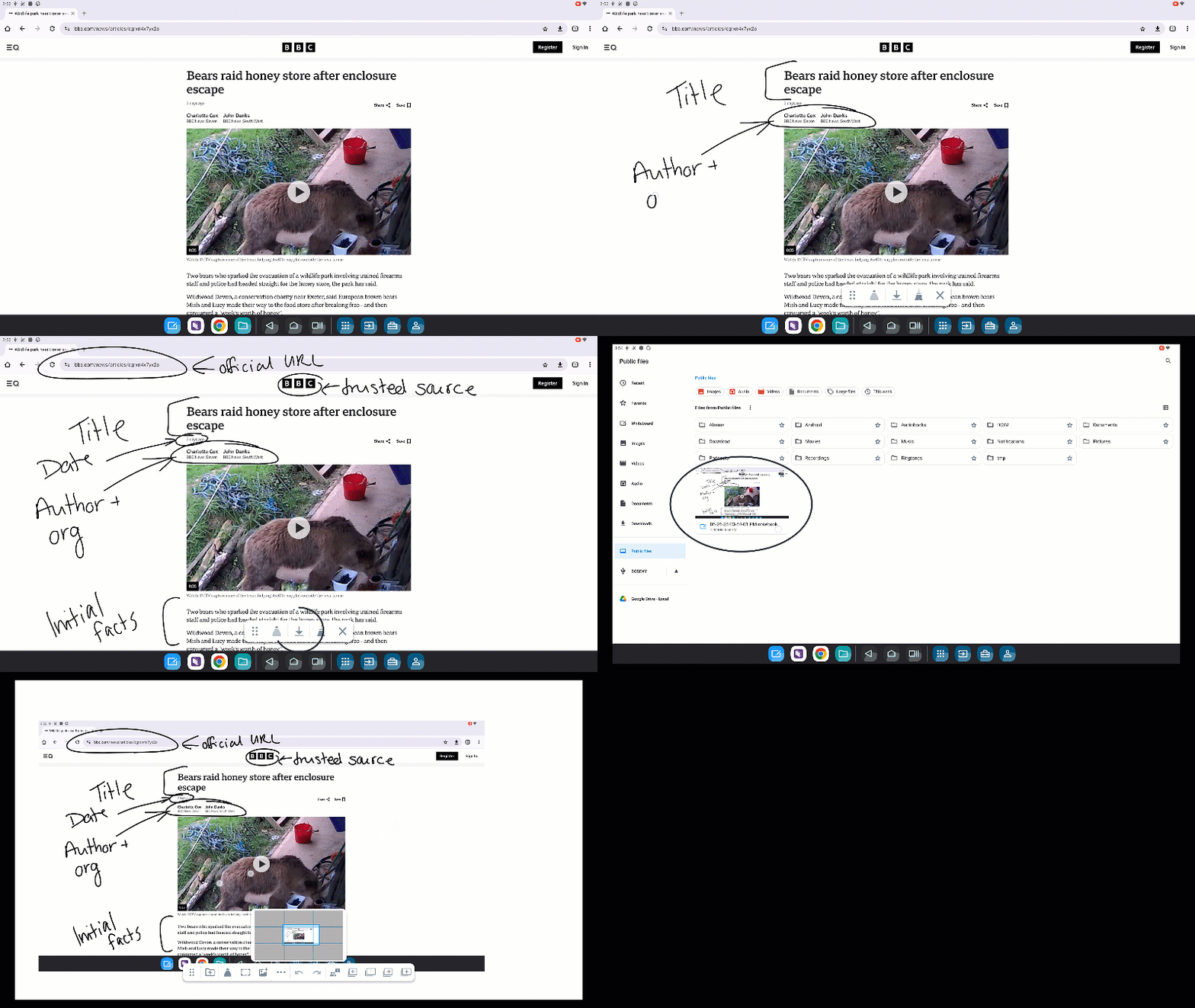
Use the ink overlay to highlight and annotate without disrupting your lesson: Use the ink overlay (acetate) to draw attention to key ideas, highlight important details, or annotate in real time—on top of web pages, videos, documents, and more. Your ink floats above the content, so you can guide students without disrupting your lesson. This feature is now available to use with any app and even when viewing other inputs on the display using the freeze frame tool.
Settings
Highlights
Control automatic sign-out behavior for shared displays: Enhance security by setting a sign-out timer for SMART Accounts—either after a period of inactivity or a set duration.
New option to disable touch for digital signage and monitor-only use: A new setting under
Settings> SMART> Button settings> Disable touchscreenallows administrators to disable all touch interactions—including fingers, pens, erasers, and Tool Explorer tools. This is ideal for using SMART Boards as digital signage or large-format displays in spaces like hallways or conference rooms, where user interaction is not required.Expanded admin options for securing display settings: Administrators now have more control over how settings are secured. You can choose to restrict access to a predefined list of settings selected by SMART, or completely lock down all settings by disabling access to the Settings app. This flexibility helps meet different security and management needs.
Known incompatibilities
If the Android lock screen is set for the default user, the Clean up function won’t be able to remove all Google accounts if the
Settings > Security > Clean up > Clean up Google Accountsoption is enabled. We recommend using iQ’s lock screen instead of the Android lock screen.Power management settings such as “screen timeout” are set for each user individually, and will default to 60 min for each new user regardless of the setting on the default/public user.
System software
Highlights
New supported languages: Added support for Spanish (Latin America) and Portuguese (Brazil).
Security updates and certificates installed: This release includes the following security updates:
iQ apps are now enabled by default with Android EMM enrollment: When a display is enrolled in an Android Enterprise Mobile Management solution, iQ apps will automatically be enabled by default to help simplify setup and ensuring essential tools are ready to use.
Resolved issues
Resolved an issue where SMART Board MX (V5) displays sometimes failed to wake from standby.
Resolved an issue on AM60 devices where touch could become unresponsive during the SMART Account sign-in process when using a Google sign in method that involved a USB passkey or FIDO security key.
Resolved an issue where audio played through both a connected Bluetooth speaker and the display’s built-in speaker.
Known issues
When the display is waking up from sleep, switching to the Home screen can sometimes take several seconds to load.
The Japanese IME on-screen keyboard creates English characters.
Signed in users cannot pair new Bluetooth devices. Bluetooth devices must be paired to the display before to signing in.
On SMART Board MX (V5) and RX series displays, computers connected to the VGA port will not be able to use USB peripherals (such as USB drives) connected to the display. Connect computers using HDMI or USB-C to access USB peripherals on the computer.
In the Chrome browser app, microphone audio may occasionally sound choppy when recording from a website.
ARC and eARC soundbars might not work when connected to the HDMI4 port. Instead, connect these devices to HDMI2 for best compatibility.
In some cases, the display does not enter sleep mode when external devices (for example, laptops or webcams) are connected.
Occasionally, when an AM60 is connected to a SMART Board MX (V3), MX (V4), 6000S, or QX Pro display, it may not start properly when the display is powered on, wakes from sleep, or switches inputs. The screen may remain black or show a persistent “connecting” message. Pressing the AM60’s power button resolves the issue
For system stability, when using the display with an HDMI-CEC peripheral, the display should be set to the iQ experience as the default input.
In rare situations, touch may not work on external inputs connected to an AM60. Switching back to the AM60’s iQ input and then back to the external input typically restores touch functionality.
In rare situations, touch may not work on the iQ 4 (AM60) input after a SMART Board MX (V2), 6000S, or 7000 (V2) series display wakes from sleep. Restarting the display typically resolves this. A permanent fix is planned in an upcoming iQ 3 update.
On SMART Board RX series displays, the microphone mute button on the convenience panel may become unresponsive when a computer is connected to the USB-C1 port without an external power source. Unplugging the computer restores functionality.
Known incompatibilities
ARC and eARC soundbars might not work when connected to the HDMI4 port. Instead, connect these devices to HDMI2 for best compatibility.
On SMART Board MX (V5) and RX series displays, computers connected to the VGA port will not be able to use USB peripherals (such as USB drives) connected to the display. Connect computers using HDMI or USB-C to access USB peripherals on the computer.
Shared Access mode cannot be used with Android Enterprise’s Work profiles as they are mutually exclusive features. Shared Access mode will be removed if an admin enrolls the display into Android Enterprise, such as Microsoft InTune, and enables the Work Profiles feature.
SMART Remote Management
Known issues
SMART Remote Management might not report Wi-Fi SSIDs, even if the connection is still active on the display.
After stopping a scheduled command, the display might still execute the command when additional users sign in.
The SMART Board tab on the Device Info page is missing some information, and the titles are cut off on the page.
Known incompatibilities
SMART Remote Management might not be able to install application packages from the Play Store if the package provided by Google is a split APK.
The "Device Name" syncs only to the remote management console when the device is first enrolled, and changes made to the devices name from the remote management console does not sync to the device.
iQ 4.5 SP1 release notesRelease date: | June 16, 2025 |
Versions: | AM60: 4.5.17036r1 MX (V5): 4.5.1.8036r1 RX, MX (V5) Plus, and QX (V2) Pro: 4.5.1.9036r1 |
Whiteboard
Highlights
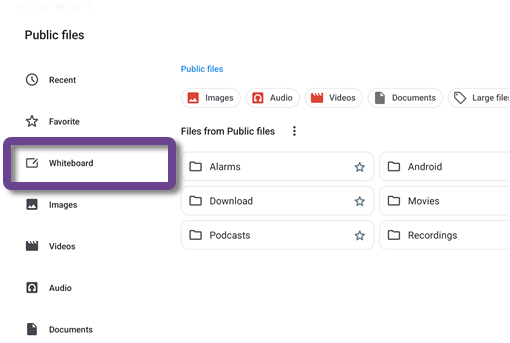
Easier file access: Find your Whiteboard files more easily in the Files library with the new Whiteboard folder location:
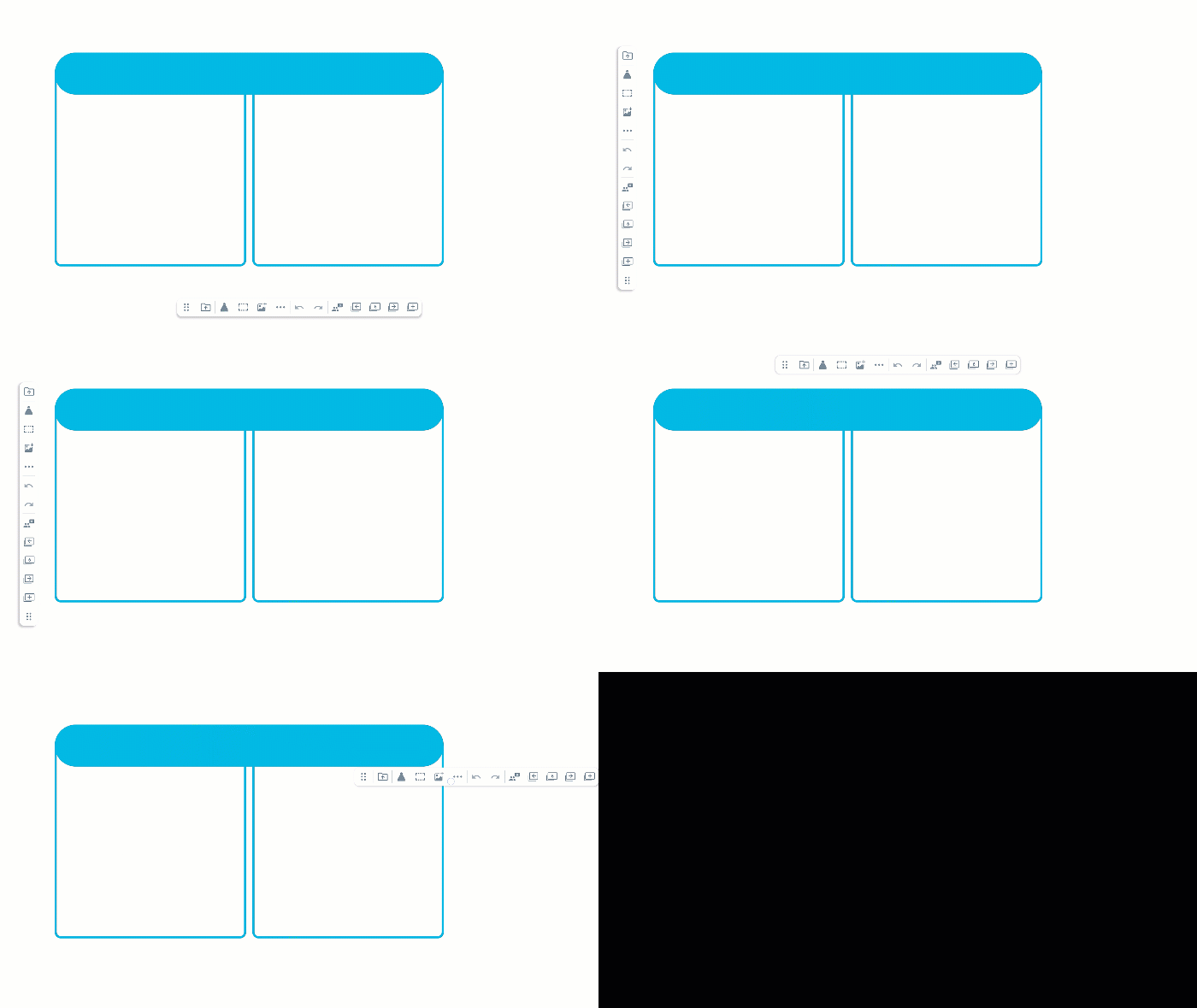
Vertical Toolbar Orientation: The Whiteboard toolbar can now be used in a vertical orientation. Drag it to the left or right edge of the canvas to switch to vertical, and back to the top or bottom to return to horizontal.
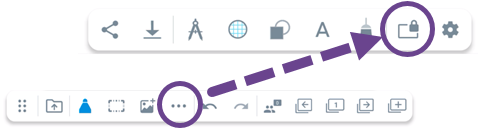
Canvas Lock: The Whiteboard canvas can now be locked to prevent panning with finger touches. This option is available under the More (⋯) menu on the Whiteboard toolbar.
Eraser Pen Mode: The pen tool now includes an eraser mode for more precise control. When set to eraser, pen actions will erase instead of draw. Stroke width can be adjusted in the pen menu.
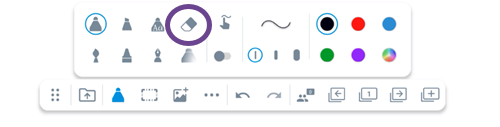
New Stylized Pens: Four new stylized pens are available: calligraphy, crayon, paint, and disappearing ink. These can be selected from the pen menu.

Export Lumio Lessons to PDF: Lumio lessons can now be exported as PDF files. Use the export option under the More (⋯) menu on the Whiteboard toolbar.
File Sharing via QR Code or URL: Whiteboard files can now be shared using a QR Code or URL link via “SMART Share,” available through Android Share.
Resolved issues
Fixed an issue where Whole-class Whiteboard could become unresponsive if a student added an equation while the teacher was switching between files at the display.
Pen properties now reset consistently when a new Whiteboard file is opened.
Previously, a whiteboard file’s custom background image did not appear if the file was opened in Lumio.
Known issues
A student might be taken to a non-collaborative version of the whiteboard page if the teacher has set the Lesson Pacing to “Student”.
Rarely, when creating a Lumio file for the first time after waking the display, the Whiteboard app may fail to open, close unexpectedly, or remain stuck loading without showing a “No network” message.
Sometimes when converting a page with a ready-made template in it to a Handout activity causes the whiteboard app to close unexpectedly.
The Whiteboard app may close unexpectedly when using split-screen mode with some apps.
If you open a file from a USB drive and remove the drive before closing the file, it might save as empty and lose all its content.
When students join a Whole-class Whiteboard activity from their devices, annotations made with the equation editor won’t appear on the main display. In some cases, adding an equation may also cause the whiteboard to close unexpectedly.
(For SMART Board RX displays) In some cases, the pen may not update to the new color you've selected. This can happen after a lot of writing and using undo/redo multiple times.
Sometimes, after opening a Lumio lesson in the whiteboard app, adding images to a page too quickly can cause them not to load properly.
If you open a Lumio file with an equation in the whiteboard app and then open the participation panel and click Start Session, the file may occasionally freeze or become unresponsive.
Ellipsis buttons appear disabled, but remain usable, although they can create issues with game-based activities.
Images in a Lumio file might be invisible or missing if a user exits the file or converts a page before the file is finished uploading.
Known incompatibilities
When opening a file in the Whiteboard app, if the file has any widgets added from iQ 3, these widgets will not appear.
Files library
Highlights
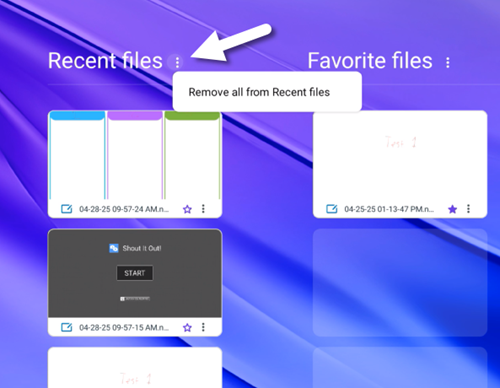
File management enhancements: Users can now remove all files from the Recent and Favorite widgets in the Home screen. Individual files can also be removed or opened in their file location. These changes are reflected in the Files library.
File Sharing via QR Code or URL: Files can now be shared using a QR Code or URL link via “SMART Share,” available through Android Share. This option is accessible from the Files library, Whiteboard, and Acetate. Sharing is supported over Wi-Fi for single files under 100MB.
Known issues
Sometimes, a PDF file is created when trying to copy a SMART Notebook file from Google Drive to a local folder location or copy a file between Google Drive folders..
Known incompatibilities
Google Workspace users will not be able to use the Google Drive integration within the Files Library app if the Workspace admin has disabled access to Google Drive. Users will be able to sign in to their Google account from the Files Library, but the Files Library will not open their Google Drive. Users should ask the Google Workspace admin to enable access to Google Drive for their account.
SMART OneLaunch
Highlights
SMART OneLaunch is a new software solution that simplifies meetings on Microsoft Teams, Zoom, Google Meet, or Webex. Join meetings directly on your interactive display with just a tap—no hubs, external computers or complex setups required.
The app is available in the app drawer, as a widget, or through an optional Home screen experience. You can request a license from your SMART representative or self-start a 30 day trial upon activation from your SMART Board interactive display.
SMART Tools & Utilities
Highlights
Screen shade shortcut: A new shortcut for screen shade is available in SMART tools & utilities, making it easier to access when you want it.
Resizable engagement tools:Engagement tools can now be resized dynamically.
Settings
Highlights
SMART Remote Management settings relocation: SMART Remote Management settings are now located in the Settings app under
Settings > SMART. The separate SMART Remote Management app has been removed from the app drawer. These settings can be locked using Settings Lockdown.Crash reporting: Users can now choose whether to submit crash reports to SMART. This option is available under
Settings > SMART > Diagnostics > Enable Crash Reporting.Microsoft Teams Room integration: Devices with iQ 4 can now connect to a Microsoft Teams Room system using the HDMI out port. To ensure proper HD video output, enable
Settings > Display > External display > Autodetect Microsoft Teams Room system.
Known incompatibilities
If the Android lock screen is set for the default user, the Clean up function won’t be able to remove all Google accounts if the
Settings > Security > Clean up > Clean up Google Accountsoption is enabled. We recommend using iQ’s lock screen instead of the Android lock screen.Power management settings such as “screen timeout” are set for each user individually, and will default to 60 min for each new user regardless of the setting on the default/public user.
System software
Highlights
Shared Access Mode: Shared Access Mode provides secure, flexible access in shared environments such as classrooms. When enabled, users can regain access to a locked device with a single tap—without compromising security or privacy.
This mode can be enabled in Settings
 SMARTSMART Board mode or through SMART Remote Management. When configuring new devices, it can be selected during initial setup.
Expanded touch support: MX-V5, M Pro, RX, and QX-V2 models now support up to 50 points of touch.
Note
The actual number of touch points depends on the operating system and application used. Windows and Linux systems support up to 50 points.
AM60 touch improvements: Improved touch performance and compatibility with host boards on AM60.
Resolved issues
Fixed the issues when using a physical puck or rectangle eraser on a display with AM60, the size and outline of the eraser in the Whiteboard would be slightly smaller than the actual eraser.
The navigation bar now opens and closes apps and views consistently.
Improved multi-touch and multi-pen performance when using SMART Notebook on a computer connected to the AM60. For full functionality, connect the computer directly to the SMART Board display.
Fixed the issue where an AM60 connected to a SMART Board MX (V3), MX (V4), 6000S, or QX Pro series display occasionally displayed a black screen when the display woke up from standby.
Resolved an issue preventing HDMI-ARC soundbars from functioning correctly when connected to an AM60.
Addressed visual artifacts when displaying HDMI content in 480p or 576p resolution.
Fixed an issue where using the HDMI-out port sometimes resulted in a black screen if the HDMI output resolution was set to SD (720x480) or VGA (640x480).
Updated the annotation toolbar for a cleaner, more intuitive icon layout when writing or drawing in supported apps.
Fixed an issue where open dialogs didn’t close when you closed the annotation layer.
Fixed an issue where Ink would remain if you were drawing/writing on the display while switching between apps.
Fixed a missing Sign in button in the navigation bar after enrolling in an Android Work Profile.
Resolved an issue where the display could reboot if an HDMI-CEC device woke the display and requested an input change, particularly when an external input was set as the default and multiple video inputs were active.
Fixed the issue where touch occasionally didn't work when switching to an input with a MacBook Pro with M3 or M4 processor connected to the display.
Fixed the issue where there was no signal or the video resolution wasn't updated after changing the HDMI out resolution on the display.
Fixed the issue that occasionally caused the SMART Board RX display's screen to flicker when switching inputs.
Fixed an issue where connecting an Apple MacBook Pro (M3) to the display via USB-C could occasionally result in a green screen when viewing the input.
Fixed an issue where the built-in speaker didn’t produce sound after the display woke from standby.
Fixed an issue where the Microsoft Teams app didn’t always display or share video from the SMART UHD-120 camera.
Fixed an issue where displays would sometimes not turn on from standby.
Known issues
When the display is waking up from sleep, switching to the Home screen can sometimes take several seconds to load.
The Japanese IME on-screen keyboard creates English characters.
Signed in users cannot pair new Bluetooth devices. Bluetooth devices must be paired to the display before to signing in.
On SMART Board MX (V5) and RX series displays, computers connected to the VGA port will not be able to use USB peripherals (such as USB drives) connected to the display. Connect computers using HDMI or USB-C to access USB peripherals on the computer.
In the Chrome browser app, microphone audio may occasionally sound choppy when recording from a website.
ARC and eARC soundbars might not work when connected to the HDMI4 port. Instead, connect these devices to HDMI2 for best compatibility.
In some cases, the display does not enter sleep mode when external devices (for example, laptops or webcams) are connected.
Occasionally, when an AM60 is connected to a SMART Board MX (V3), MX (V4), 6000S, or QX Pro display, it may not start properly when the display is powered on, wakes from sleep, or switches inputs. The screen may remain black or show a persistent “connecting” message. Pressing the AM60’s power button resolves the issue
For system stability, when using the display with an HDMI-CEC peripheral, the display should be set to the iQ experience as the default input.
Known incompatibilities
ARC and eARC soundbars might not work when connected to the HDMI4 port. Instead, connect these devices to HDMI2 for best compatibility.
On SMART Board MX (V5) and RX series displays, computers connected to the VGA port will not be able to use USB peripherals (such as USB drives) connected to the display. Connect computers using HDMI or USB-C to access USB peripherals on the computer.
Shared Access mode cannot be used with Android Enterprise’s Work profiles as they are mutually exclusive features. Shared Access mode will be removed if an admin enrolls the display into Android Enterprise, such as Microsoft InTune, and enables the Work Profiles feature.
SMART Remote Management
Resolved issues
Fixed the issue where the “Forget Wi-Fi” command did not work, resulting in previously connected networks being remembered on the display.
Fixed the issue where some commands, including messages and advanced messages, would sometimes execute only after the user goes back to the Home screen. Also, commands may have not executed for a user the first time they signed in, but would work as expected on subsequent sign-ins.
Known issues
SMART Remote Management might not report Wi-Fi SSIDs, even if the connection is still active on the display.
After stopping a scheduled command, the display might still execute the command when additional users sign in.
The SMART Board tab on the Device Info page is missing some information, and the titles are cut off on the page.
Known incompatibilities
SMART Remote Management might not be able to install application packages from the Play Store if the package provided by Google is a split APK.
The "Device Name" syncs only to the remote management console when the device is first enrolled, and changes made to the devices name from the remote management console does not sync to the device.
System software iQ 4.4 release notesRelease date | March 25, 2025 |
|---|---|
Version | MX (V5): 4.4.0.8122 RX and QX (V2) Pro: 4.4.0.9122 AM60: 4.4.0.7122 |
Summary | SMART’s iQ 4 embedded computing offers best-in class education and enterprise features along with the power of EDLA-licensed by Google, and Android 13. In addition to providing powerful interoperability for both Google for Education and Microsoft Office 365 customers through Google GMS (EDLA), iQ 4 offers easier workflows, a feature-rich whiteboard, built-in tools and resources, student device integration, and enhanced security and privacy—all designed to save you time and offer a personalized user experience. iQ 4 enables industry leading ease of use and engagement in any classroom or office environment. |
Highlights | |
System software | Third-party device management
Setup
Home screen
Writing and drawing
SMART Tools
Files Library
Touch
Security
Language support
Administrators
General
|
Embedded apps | SMART Whiteboard
|
Resolved issues | |
System software | Touch
Audio
System
SMART Remote Management (SRM)
|
Embedded apps | SMART Whiteboard
|
Known issues | |
System software | Touch
Audio
System
Power management
SMART Remote Management (SRM)
|
Embedded apps | Whiteboard
|
System software iQ 4.3 release notesRelease date | December 10, 2024 |
|---|---|
Version | 4.3.0.9082 |
Summary | SMART’s iQ 4 embedded computing offers best-in class education and enterprise features along with the power of EDLA-licensed by Google, and Android 13. In addition to providing powerful interoperability for both Google for Education and Microsoft Office 365 customers through Google GMS (EDLA), iQ 4 offers easier workflows, a feature-rich whiteboard, built-in tools and resources, student device integration, and enhanced security and privacy — all designed to save you time and offer a personalized user experience. iQ 4 enables industry leading ease of use and engagement in any classroom or office environment. |
Highlights | |
System software | Setup
Home screen
SMART Tools
Files library
Touch
SMART Remote Management (SRM)
|
Embedded apps | SMART Whiteboard
NOTE: The other Android application must support use of the clipboard or drag and drop, or dragging or copying content from those apps will not work. Google Chrome does support these features.
System
|
Resolved issues | |
System software | Touch
Audio
System
SMART Remote Management (SRM)
Networking
|
Embedded apps | SMART Whiteboard
|
Known issues | |
System software | SMART Account sign-in
Touch
Audio
System
Power management
SMART Remote Management (SRM)
|
Embedded apps | Whiteboard
|
System software iQ 4.2 release notesRelease date | October 23, 2024 |
|---|---|
Version | 4.2.0.9080 |
Summary | SMART’s iQ 4 embedded computing offers best-in class education and enterprise features along with the power of EDLA-licensed by Google, and Android 13. In addition to providing powerful interoperability for both Google for Education and Microsoft Office 365 customers through Google GMS (EDLA), iQ 4 offers easier workflows, a feature-rich whiteboard, built-in tools and resources, student device integration, and enhanced security and privacy — all designed to save you time and offer a personalized user experience. iQ 4 enables industry leading ease of use and engagement in any classroom or office environment. |
Highlights | |
System software | Setup
Home screen
SMART Tools
Files library
SMART lock screen
SMART Remote Management (SRM)
System Updates
|
Embedded apps | SMART Whiteboard
SMART Mirror
Notes: |
Resolved issues | |
System software | SMART Account users
Touch
Video
Audio
Networking
|
Embedded apps | SMART Whiteboard
SMART Remote Management (SRM)
|
Known issues | |
System software | SMART Account sign-in
Audio
Power management
|
Embedded apps | Whiteboard
SMART Remote Management (SRM)
|
System software iQ 4.1 SP1 release notesRelease date | August 27, 2024 |
|---|---|
iQ appliance | |
AM60 | 4.1.1.7072r1 |
Summary | SMART’s iQ 4 embedded computing offers best-in class education and enterprise features along with the power of Google EDLA and Android 13. In addition to providing powerful interoperability for both Google for Education and Microsoft Office 365 customers through its EDLA certification, iQ 4 offers easier workflows, a feature-rich whiteboard, built-in tools and resources, student device integration and enhanced security and privacy — all designed to save you time and offer a personalized user experience. iQ 4 enables industry leading ease of use and engagement in any classroom or office environment. Note: This update is available only as a download and not as an over-the-air (OTA) update. Contact support if you need help deploying the update to a number of devices. |
Highlights | |
This iQ 4.1 SP1 release brings the iQ 4.0 features to the AM60 and adds the following: | |
System software |
Navigation and Home Screen
|
Embedded apps | Whiteboard
|
AM60 Notes | |
Compatibility | If you are using the AM60 in a host display that runs iQ 3, such as SMART Board MX (V2), MX (V3), MX (V4), 6000S, 6000S (V3), 7000 (V2), 7000R, and QX Pro:
Important notes regarding SMART Board SBID-6000 and SPNL-6000 series interactive displays:
Feature availability for the AM60 is determined by the pen, touch, and sensor capabilities of the host display. Consult the user guide for your display to learn more about its features. |
Future Enhancements | This section describes display capabilities that, depending on the host display, will be made available to the AM60 in later updates. The following are not currently available:
You can use the Whiteboard or Acetate’s pen menu to change the pen’s color.
The following can be used to control only the corresponding features on the display. They have no effect on the AM60:
|
Resolved issues | |
Hardware compatibility |
|
System software |
|
Embedded apps | SMART Remote Management
Whiteboard
|
Known issues | |
General |
|
Chrome OS Devices |
|
Mac OS Devices |
|
USB Peripherals | If you use peripherals connected to your display (such as headsets, mass storage, microphones, and webcams), SMART recommends that you connect computers to the display rather than to the AM60. For video sources that are connected directly to the display, use the display’s input menu.
|
System software iQ 4.0 release notesRelease date | May 28, 2024 |
|---|---|
Version | 4.0.4 |
Summary | SMART’s iQ 4 embedded computing offers best-in class education and enterprise features along with the power of EDLA-licensed by Google, and Android 13. In addition to providing powerful interoperability for both Google for Education and Microsoft Office 365 customers through Google GMS (EDLA), iQ 4 offers easier workflows, a feature-rich whiteboard, built-in tools and resources, student device integration and enhanced security and privacy — all designed to save you time and offer a personalized user experience. iQ 4 enables industry leading ease of use and engagement in any classroom or office environment. |
Highlights | |
System software | A redesigned 4K experience featuring Android 13 with EDLA-licensed by Google.
Improved digital ink experience
Improved multi-user experience and new QR- and device-based sign in options
Redesigned Home screen
More-convenient File management and cloud storage options
SMART Tools
PIP with external displays
Support for external displays
Security and admin tools for easy remote management
New SMART Keyboard, language support
|
Embedded apps | New Whiteboard
SMART Mirror
|
Known issues | |
System software | Signed-in SMART Account users
Touch
Clean up and Lock Screen
Audio
NFC
RS-232 Room control
Peripherals compatibility
|
Embedded apps | Apps
SMART Remote Management (SRM)
Whiteboard
|
Android 13 | Networking issues in Android 13
|