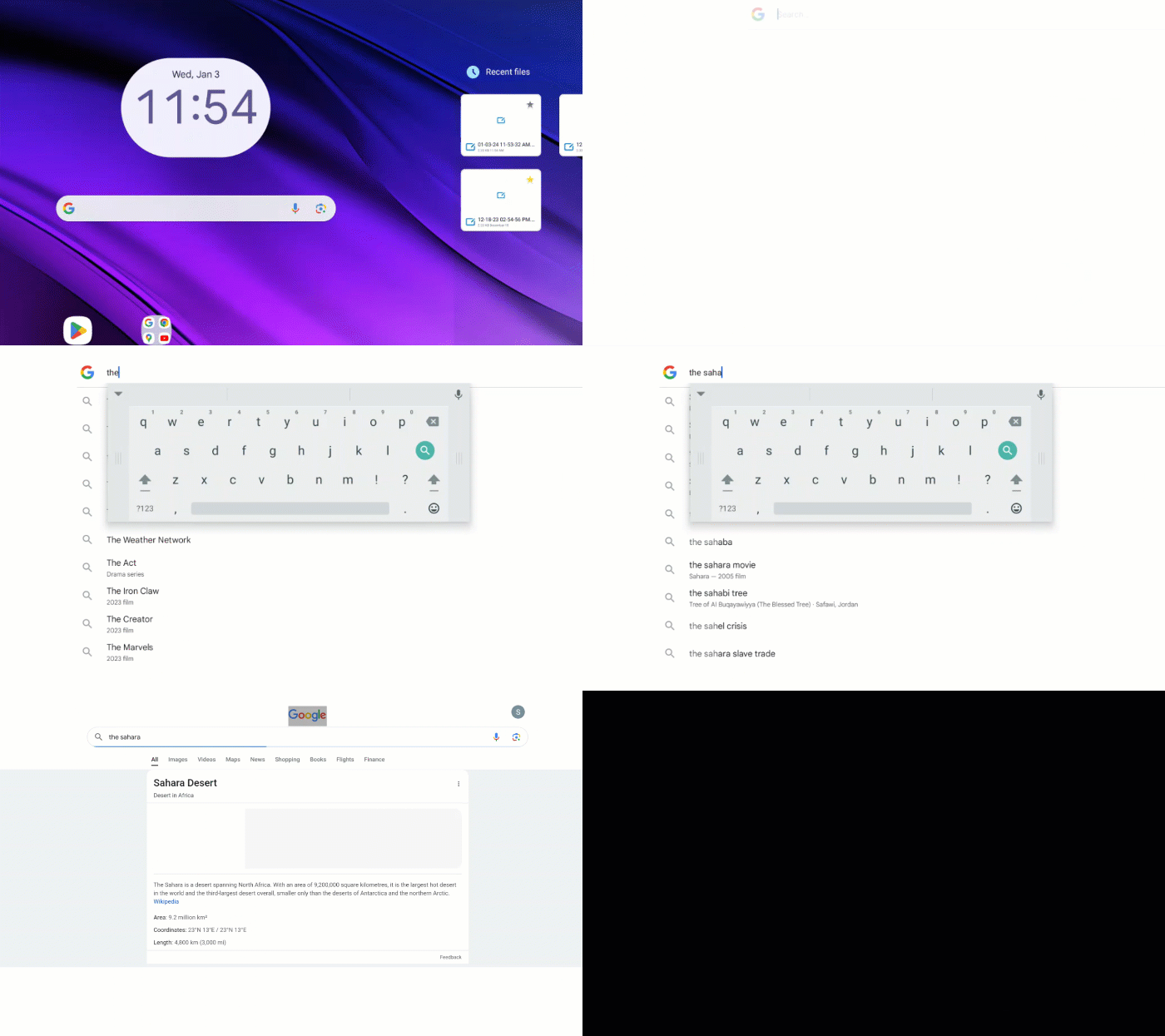
Explore the home screen
The home screen is the main screen you see when no app or file is open. By default, the home screen shows the date and time widget, Google search bar, recently opened files or apps, favorites, and the global navigation toolbar. You can customize the Home screen.
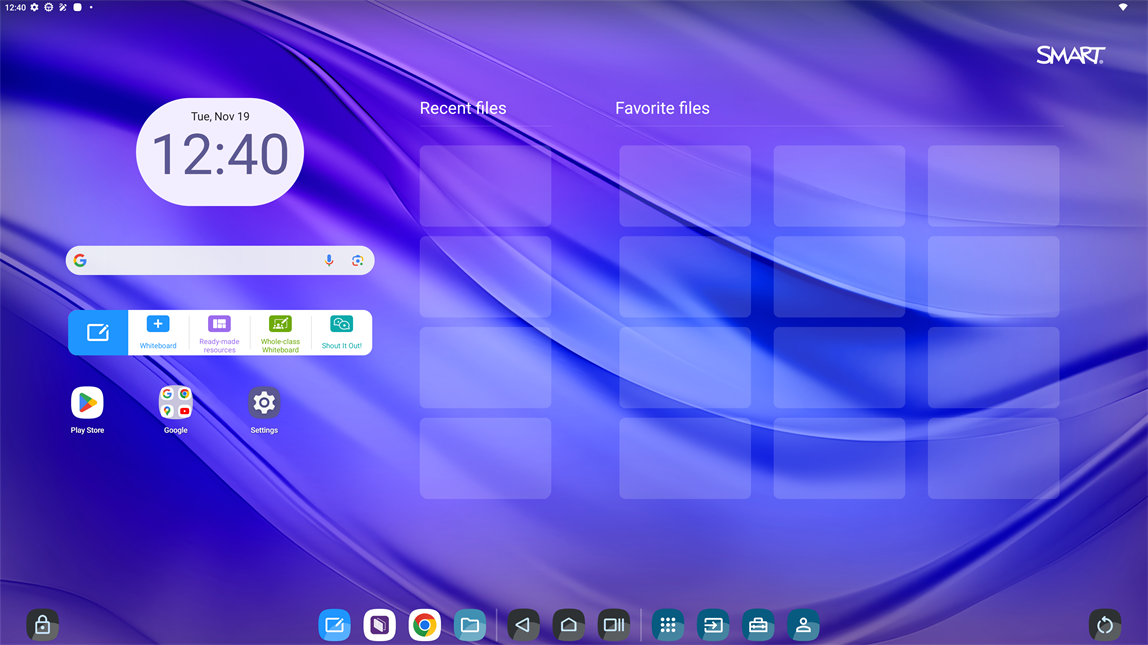
 The navigation bar
The navigation bar is available from any app or input. If it’s not appearing on the screen, swipe up from the bottom of the screen to open it.

Open whiteboard | Tap Whiteboard |
|---|---|
Manage files | Tap Files Library |
Go back | Tap Back |
Go to home screen | Return to this screen anytime by tapping Home |
View open apps / switch between open apps / split screen | Tap Recents |
Select input | Tap Inputs |
Access apps | Tap Apps SeeInstall apps |
Use SMART Tools | Tap SMART Tools |
Sign in | Tap SMART Account Sign in SeeSign in |
 to start a new whiteboard.
 to open and save files on the display.
 to return to the previous screen you were looking at. You can go back more than once. But when you reach the home screen, you can't go back any further.
 .
. to view a list of recently opened apps and enable
  to view any connected computers
 to launch and manage apps.
 to access tools to increase student engagement.
 to sign in to your SMART account.
You can customize which apps appear in the navigation bar.
Use the recent and favorite files widgetsThe recent and favorite files widgets appear on the home screen by default to give you quick access to your files. As with any apps or widgets on the home screen, you can press and hold them to move or adjust their appearance.
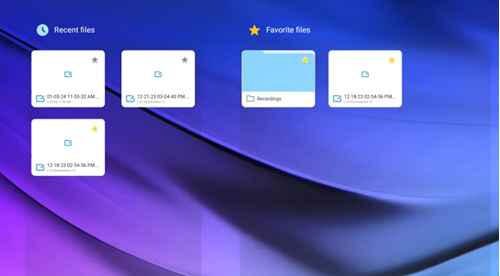
The Recent files widget displays the most recently opened files that are still available on the display.
Any files that you marked as a favorite from the files manager appear in the Favorite files widget.
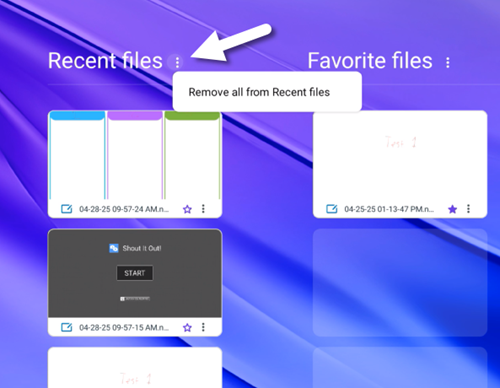
You can remove all files from the Recent and Favorite widgets. Individual files can also be removed or opened in their file location. These changes are reflected in the Files library.
 Open the Quick Settings & Notification shade
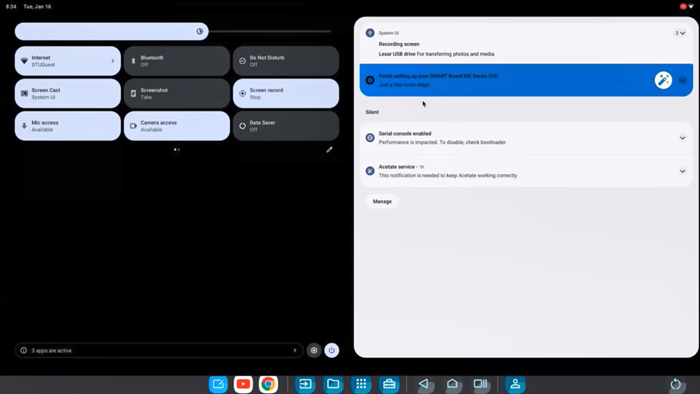
Swipe down from the top of the screen to view the Quick Settings & Notification shade. From here you can view system notifications or access some quick functions.
 Lock and unlock the display
Tap the lock button at the bottom-left of the home screen to set a PIN to block unauthorized use of the display.
Use the Google search barUse the search bar on the home screen to quickly start a Google search. You can search the internet just as you would normally with Google, by either typing in a search term, using an image, or by using your voice.