Creating a SMART Account as a parent
A SMART Account gives you and your child access to the educational games and videos available at www.funterra.com.
Setting up a SMART Account as a parent
In a web browser, go to www.funterra.com and click Sign Up in the upper-right corner.
The SMART account creation wizard opens.
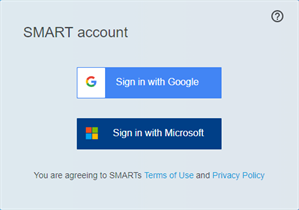
Select Google or Microsoft as your account provider.
SMART will use the account you choose (and the associated email and password) to create your SMART account.
Your account provider’s sign-in dialog appears.
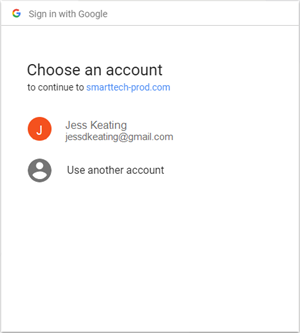
Follow the on-screen instructions to sign into your account provider. You’ll be asked to enter or select your email address and then enter your password.
After you sign in to your account provider, you’re returned to SMART’s account creation wizard, where you’re asked to provide some basic information.
Fill out the required information, agree to the terms of use, select whether you would like to receive communications from SMART, and then click Finish.
Note
When you select a display name, it will not appear in Funterra, but you can view and change it, along with your other SMART account settings, at myaccount.smarttech.com.
After you’ve created a SMART account, you’re returned to Funterra, where you’ll be guided through a few additional setup steps, such as creating a PIN that restricts your child from accessing account and payment settings and selecting a player avatar and screen name for your child.
Keywords |
|