 Adding (provisioning) teachers on a SMART education software subscription? Learn More
Manually removing teachers from a subscription
If you have been adding teachers to a subscription manually rather than syncing with a third-party rostering tool, you can use the SMART Admin Portal to manually remove a single user or all users from a subscription.
Notes
Adding or removing teachers manually is disabled in the SMART Admin Portal if you have synced with a supported rostering tool. If you added a list of teachers from a rostering tool, use that tool to manage the list.
Removing a user from the list removes their access to a subscription. However, all the user’s data (such as Lumio files and so on) remains available.
To remove a single teacher from a subscription
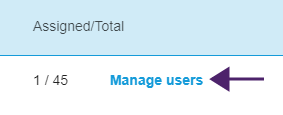
Click Manage users in the Assigned/Total column for the subscription from which you want to remove a user.
A list of assigned users appears.
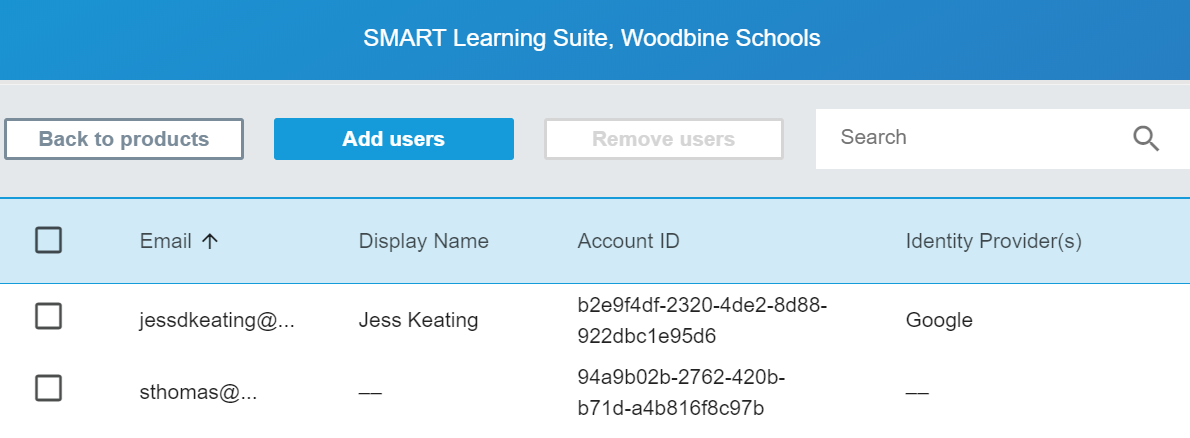
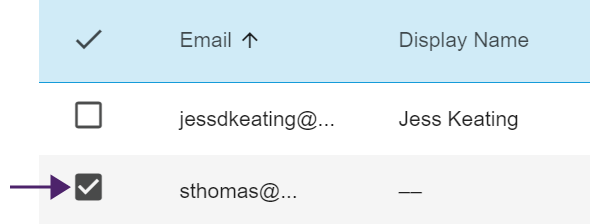
Select the user by clicking the check box beside the email address.
Tip
If you are looking through a long list of users, use the search bar in the top right corner of your screen.
Click Remove users on the main screen.

A confirmation dialog appears and asks if you are sure you want to remove the user.
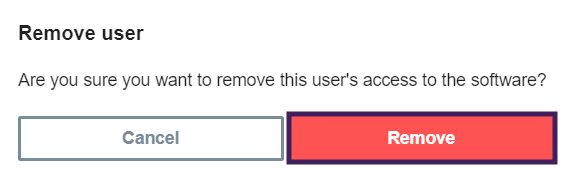
Click Remove to confirm.
To remove all teachers from a subscription
Click Manage users in the Assigned/Total column for the subscription from which you want to remove users.
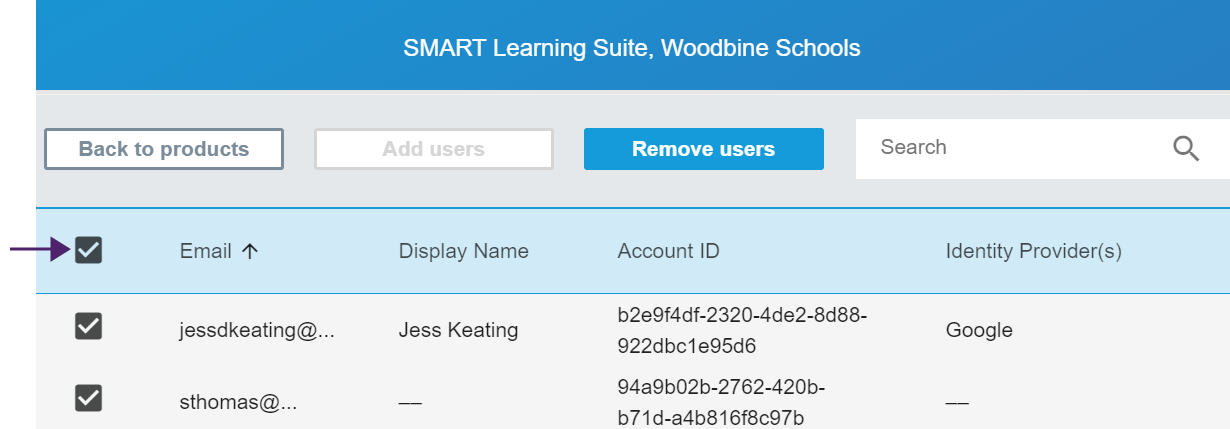
Select the check box in the blue row to select all users.
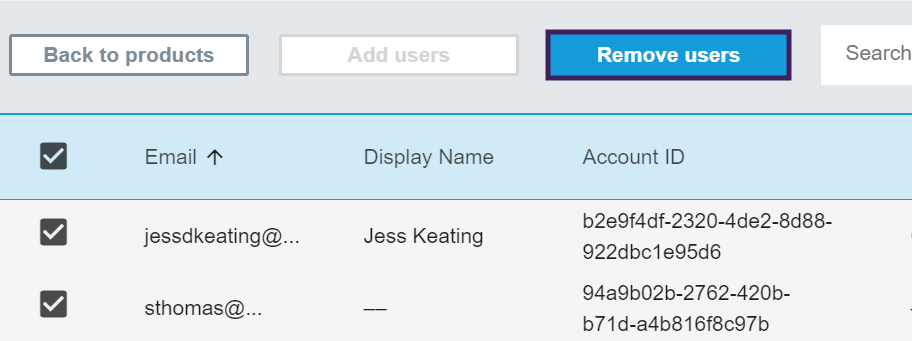
Click Remove users on the main screen.
A confirmation dialog appears and asks if you are sure you want to remove all users.
Click Remove to confirm.