Instalación de dispositivos SMART OPS
The Podio interactivo includes an OPS accessory slot in which your organization can install a SMART OPS module:
Importante
If using a SMART AM60 appliance, the system software must be iQ 4.5.1 or higher. Attach a USB mouse to the AM60, and browse to System
 Update Check for Updates to update to the current version.
Sugerencia
The Support section of the SMART website lists the SMART computing modules and appliances compatible with the podium.
Precaución
Only SMART-provided OPS appliances are supported in the Podio interactivo SMART Board Mini. Third-party OPS appliances are not supported, and their use can lead to poor performance or damage to the display.
The accessory slot’s maximum available power is 65 W. The slot is not a limited power source. To reduce the risk of fire, make sure that accessories connecting to the slot satisfy the fire enclosure requirements of IEC 62368-1.
Remove the OPS accessory slot cover before installing the OPS appliance. Store for future use or discard of the accessory slot cover appropriately.
Do not install or remove the OPS appliance while the Podio interactivo is turned on. Press and hold the power button
 on the back of the podium until the lights turn off.
After you have turned off the podium or unplugged it, wait at least 30 seconds before removing the OPS appliance to allow its internal power supplies to discharge completely.
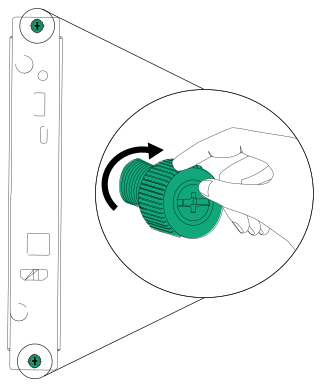
Make sure the OPS appliance is secured to the podium with screws through the two anchor points. Inadequately secured appliances can damage the podium. (An OPS appliance’s anchoring screws are typically captive, although some simply include separate anchoring screws.)