Connecting power and turning on the display for the first time
The final step in installing the display is to connect power, turn the display on, and complete the initial setup.
To connect the display to power
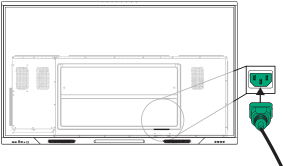
Connect the supplied power cable from the AC power inlet on the back of the display to a power outlet.
Note
Refer to the display’s specifications for power requirements and power consumption information (see Specifications).
To turn on the display
Caution
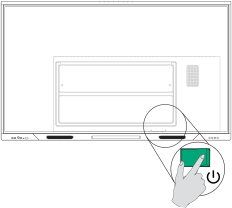
Install the OPS appliance before you turn on the display. If you can’t reach the power switch, use the front control panel’s Power
 button to put the display in Standby mode, and then unplug the display’s power cable from the power outlet.
Make sure the OPS appliance is secured to the display with screws through the two anchor points. Inadequately secured appliances can damage the display. (An OPS appliance's anchoring screws are typically captive, although some simply include separate anchoring screws. Third-party OPS appliances are not supported, and their use can lead to poor performance or damage to the display.
Flick the power switch beside the AC power inlet on the rear of the display to the ON (I) position.
To complete initial setup
Select the default language.
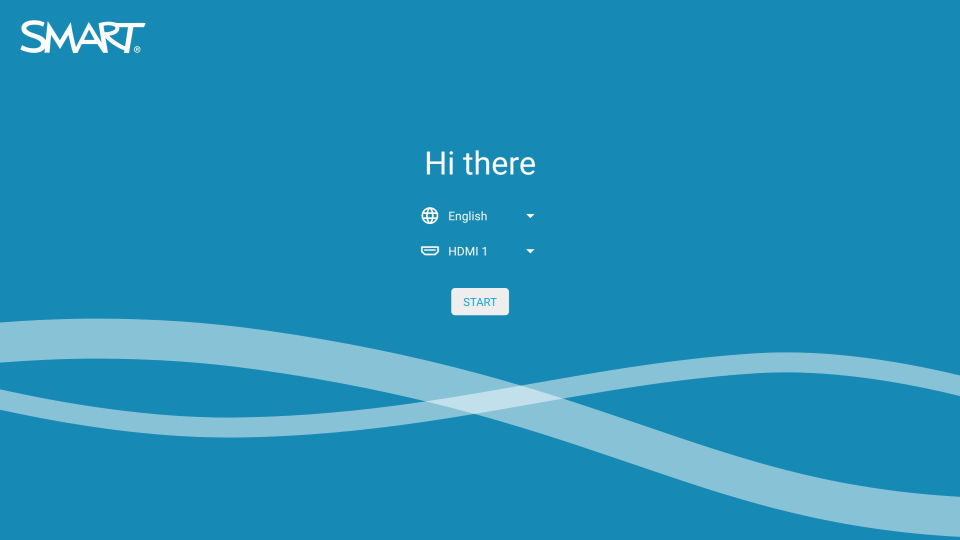
Select the default input.
Tap START.