Using Whiteboard

You can view and erase notes, open a saved note, and save your notes to the display, a USB drive, or cloud account. You can also email a copy of your notes.
Tip
To access the Launcher while in using the Whiteboard, swipe up from the bottom of the screen.
 Whiteboard tools and controls
The Whiteboard app has a number of tools and controls for accessing and managing whiteboard sessions.
Tip
Swipe up from the bottom of the screen to access the launcher when viewing a whiteboard file.
Tool | Icon | Description |
|---|---|---|
Menu tools Tap the Menu icon | ||
New |  | Start a new whiteboard. |
Open |  | Open a whiteboard saved on the display, from a USB drive, or a cloud account. |
Save |  | Save a new whiteboard file to the display, to a USB drive, or a cloud account. Saves all pages into one whiteboard file in .wbd, .pdf, and .png file formats. Saving the current whiteboard file will replaces previously saved versions. |
Save As |  | Rename the current whiteboard and save it without overwriting a previously saved version. |
Upload |  | Save the whiteboard contents directly to a cloud account. |
Scan |  | Share the whiteboard using a QR code. Note The shared whiteboard image doesn't update to reflect changes made after it was shared. |
 | Email a copy of the current whiteboard session. Note This feature requires configuration before using. Review the following important information before proceeding:
| |
 | Access options for enabling palm rejection, multi-finger mode, pressure sensing, and more. | |
Exit |  | Exits the Whiteboard app. |
Other controls | ||
Menu |  | Access a menu of tools for opening saving files. |
 | Partition the screen into equal non-overlapping parts. Each participant has their own space for writing and drawing. You can have up to four partitions. | |
Navigation tools | ||
Next |  | Advance to the next page. |
Previous |  | Return to the previous page. |
Add a page |  | Add a new page to the current whiteboard. |
Page number |  | Shows the current page number and enables you to go to a specific page or delete pages. Tap the box to expand and see all pages in the file. |
Writing and erasing notesThe Whiteboard has several tools for drawing and erasing.
Tool | Icon | Description |
|---|---|---|
Select |  | Select objects and manipulate them by moving, rotating, resizing, copying, or deleting them. Options are also available for changing the color of an object, arranging the order of objects, copying or deleting an object, and more. |
Pen |  | Change ink color and choose from a variety of pen styles. You can select a different color and style for each end of the pen. Tap the Pen tool to select it, then tap again to change its color. You can use a pen or finger to write or draw on the whiteboard. Note Dual-pen writing is supported when multi-finger writing is enabled in settings (see Settings), allowing users to write with different colors or pen styles at the same time. |
Eraser |  | Use the Eraser tool to erase digital ink and objects on a whiteboard. You can use a pen or finger to erase ink. Tap on the Eraser to select an eraser mode. You can drag a slider to change the eraser size. You can also select to delete objects by tapping an object. From the Menu, tap Settings to access additional eraser modes. |
Shape |  | Add a range of two-and three-dimensional geometric shapes to a whiteboard. You can also fill and change the color of the shapes. Select the shape and the color, then press and hold as you draw the shape. |
Insert |  | More insert options (see below). |
Undo |  | Reverse the effect of the last action. |
Redo |  | Reinstate the last action reversed with the Undo command. |
Aerial View |  | Pan to view all content on a whiteboard. |
Background |  | Add grids, or a background image to the whiteboard, or change the background’s color. |
More insert tools | ||
Media |  | Insert images from the Pictures folder in File manager. Select inserted images and manipulate them by moving, rotating, resizing, copying, or deleting them. |
Document |  | Open and edit a document while showing a whiteboard. You can also add document content as an object into a whiteboard file. |
Easy Upload |  | Scan a QR code to upload files to File manager from your mobile device. Uploaded media images can then be inserted into a whiteboard file by tapping the Media button (see above). |
Browser |  | Open a browser to search for and insert images into your whiteboard file. Select inserted images and manipulate them by moving, rotating, resizing, copying, or deleting them. |
Table |  | Add tables to a whiteboard. Select the size and then insert the table. Draw within the table to change cell sizes. |
4-Lines |  | Add an object featuring four lines on which you can write. |
Mindmap |  | Add a mind map to a whiteboard. Tap + to add more nodes. To delete a node, tap ... and tap Delete. |
Notes |  | Add “stick notes” to a whiteboard. |
Ruler |  | Add a ruler, protractor, or Geodreieck to a whiteboard. |
Periodic |  | Add a periodic table to a whiteboard. |
Tactics |  | Add a sports field boundary marking to a whiteboard. Options include a badminton court, baseball field, basketball field, football field, and more. |
Votekit |  | Create a quick poll that enables participants to cast votes and answer single multi-choice questions by scanning a QR code with their mobile devices. |
 | Import a PDF document into a whiteboard (20 page limit). | |
Starting a new whiteboardOn the display’s Home screen, tap the Whiteboard icon
.OR
Tap New in an open whiteboard.
A new whiteboard appears.
Changing the backgroundYou can change the whiteboard’s background. If a whiteboard has multiple pages, each page can have a different background. When you export or share the whiteboard, the background you’ve selected also appears.
To change the whiteboard’s background
Tap the Menu icon
.Tap the Background icon
.Select a background color and/or grid format.
OR
Upload an image to the background.
The background appears.
Note
When adding a new page, the background theme of the current page applies to the new page.
Navigating in the whiteboardEnsure Multi Finger Mode is disabled in whiteboard settings.
SeeSettings
Tap the Pen tool icon to select it.
Use two fingers to pinch to zoom in.
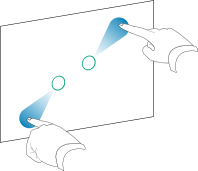
Use two fingers to pinch to zoom out.
 Opening an existing whiteboard
You can easily continue from where you left off in a saved whiteboard.
Tap the Whiteboard icon
.Tap the Menu icon
.Tap the Open icon
.The File List dialog appears.
Browse to and tap the whiteboard you want to open.
You can open a file from the display, a USB drive, or a Google Drive or OneDrive account.
Tap OK.
Saving a whiteboardYou can save a whiteboard.
To save a new whiteboard
Tap the Menu icon
.Tap the Save icon
.The Save dialog appears.
Type a name for the file in the Filename box.
Select a file type (supported formats include wbd, .pdf, and .png).
Select a storage location.
Tap Save.
Note
You can save a file to the display, a USB drive, or to a cloud account.
To save an existing whiteboard
Tap the Menu icon
.Tap the Save icon
.
To save an existing whiteboard with a new name or location
Tap the Menu icon
.Tap the Save icon
.The Save dialog appears.
Type a new name for the file in the Filename box.
Note
You can save a file to the display, a USB drive, or to a cloud account.
Select a file type (supported formats include wbd, .pdf, and .png).
Select a storage location.
Tap Save.
Exporting a whiteboard file to cloud storageTap the Menu icon
.Tap the Upload icon
.Select a cloud account.
If this is the first time uploading a file to a cloud account from the display, you’re prompted to sign in to a Google Drive or OneDrive account.
Type a name for the file in the Filename box.
Select a file type (supported formats include wbd, .pdf, and .png).
Tap Confirm.
Sharing a whiteboardIf your mobile device has a QR code scanner, it can open an image of the whiteboard in a web browser.
Note
The shared whiteboard image doesn't update to reflect changes made after it was shared.
To share a whiteboard note
Tap the Menu icon
.Tap the Scan icon
.Scan the QR code with your mobile device.
You’re prompted to open the whiteboard image in your device’s browser.
When the image appears, you can save the image to your mobile device or share the image with others.
Changing whiteboard settingsIn whiteboard settings, you can enable palm rejection, multi-finger mode, pressure sensing, and more.
To change a whiteboard setting
Tap the Menu icon
.Tap the Settings icon
and browse to the setting you want to change.