Tour of the display for users
Before using the display for the first time, take this tour to familiarize yourself with its components:
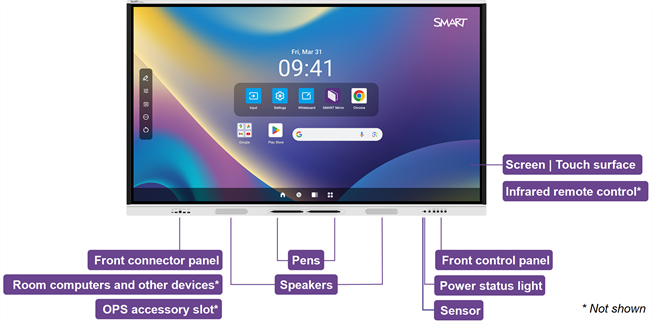
 Screen | Touch surface
The display comes in the following screen sizes:
65"
75"
86"
Caution
Prolonged focus on a fixed object, such as a display screen, can contribute to eye strain and headaches. To protect eye health, follow the 20-20-20 rule: after 20 minutes of screen time, spend 20 seconds looking at something 20 feet (6 meters) away. Relaxing the eyes, looking around frequently, and blinking will also prevent eye strain and fatigue.
You can do everything on the display that you can do at your computer—open and close applications, meet with others, create new documents or edit existing ones, visit websites, play and manipulate videos, and so on—by touching the display’s touch surface.
You can also use a variety of gestures within applications, including panning, scaling, rotating, and zooming in and out.
The display’s Advanced infrared technology supports up to 50 touch points (depending on the connected device’s operating system).
SeeUsing touch
SeeUsing touch
PensThe display comes with two pens, which you can use to write or draw on the screen.
Use your fist or palm to erase digital ink on the screen.
With Object Awareness, the display responds automatically to the tool or object you’re using, whether it’s a pen, finger, or palm. The display’s simultaneous tool differentiation technologies allow two people to write independently and simultaneously.
SensorThe display includes an infrared sensor that works with the infrared remote control and an ambient light sensor that can detect the brightness of the room and adjust the screen’s brightness accordingly.
Power status lightThe power status light indicates the display’s status:
When the power status light is amber, the display is in Standby mode.
When the power status light is green, the display is in normal operating mode.
Infrared remote controlYou can use the remote control to turn the display on and off, adjust display settings, and so on.
Front control panelThe front control panel provides buttons for turning the display on and off, controlling the volume, freezing the screen, and displaying the Home screen.
Front connector panelThe front connector panel includes connectors for USB peripherals and a computer or other input.
Room computers and other devicesRoom computers, peripherals, and other devices might be connected to the display’s side and bottom connector panels. You can switch to these devices’ inputs to view and interact with them.
The display comes with SMART software that your organization can install on connected computers to take full advantage of the display’s features while using the connected computers.
OPS appliancesThe display also includes an OPS accessory slot. If a SMART OPS appliance is installed in this slot, you can switch to its input and view and interact with it as well.
SeeOPS appliances
SpeakersThe display includes two integrated speakers, designed to provide sound at the front of a room.
As an alternative to using these integrated speakers, your organization might have connected an external audio system to the display.
Whether you use the integrated speakers or an external audio system, you can adjust the volume using the front control panel or the remote control.