 Newer SMART Board interactive display series are available. Learn more
Turning on the interactive flat panel for the first time
Turn on the interactive flat panel after mounting it and connecting power and devices.
To turn on and set up the interactive flat panel for the first time
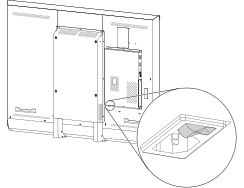
Flick the switch beside the AC power inlet to the ON (I) position.
Select your preferred language, and then tap Next.
Select your country, and then tap Next.
Select your time zone, and then tap Next.
Set the date, and then tap Next.
Set the time, and then tap Next.
Name the interactive flat panel, and then tap Next.
If the interactive flat panel isn’t using a wired network connection, select a wireless network, and then tap Next.
Important
The display needs an internet connection for downloading and installing important updates. Ask the network administrator to confirm that the network has been correctly configured for the iQ experience. For more information about network configuration, see Connecting a SMART display with the iQ experience to a network.
Select the list of applications that will appear in the launcher, and then tap Next. For more information about the apps, see Using the SMART kapp iQ experience.
Select the apps you want to appear in the Apps Library, and then tap Next.
Tip
To change which apps appear in the Apps Library, see Launcher.
Tap Finish.
The Welcome screen appears.