Status light indicators
The SMART MultiStylus and SMART Docking Station use LED indicator lights to show power, connection, charging, and pairing status. Refer to the tables below.
SMART MultiStylus indicator light
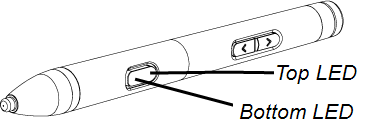
When you pick up the multistylus, the LED button shows the current mode:
In Pen mode, the LED glows solid in the selected ink color.
In Mouse mode, the LED flashes light blue from the bottom LED to the top LED.
When you are not using the multistylus, return it to the docking station to charge or store it.
The table below describes all LED states.
Click the LED color in the table to preview the action.
Note
If the multistylus shows a disconnected or low‑charge indicator, place it in the docking station to charge and reestablish the connection.
LED color | Action | Status |
|---|---|---|
LED changes from partially to fully lit when connected to the docking station. | Stylus is connected and charging. | |
| Color fades in and out once when the multistylus is removed from the docking station. | Stylus has been removed from the docking station and is active. | |
The top and bottom LEDs flash and alternate when the multistylus is connected to the docking station. | The multistylus firmware is updating while in the docking station. | |
The top LED blinks once when the multistylus is connected to the docking station. | Full charge. | |
Both LEDs fade in and out once when the LED button is pressed once. | Shows the current selected ink color. | |
The bottom LED blinks three times. | Low charge. | |
Both LEDs flash on and off at the same time. | The multistylus is disconnected from the display. |
SMART Docking Station indicator light
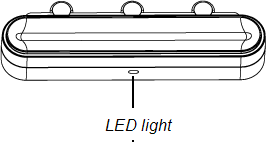
The docking station's LED shows its connection status and the multistylus’s pairing status.
The table below describes all LED states.
Note
If the LED is solid yellow, verify that the docking station is connected to USB Service Port 2 and that the display is running iQ 4.7.2 or later.
LED color | Status |
|---|---|
Solid blue | Docking station is connected and paired to the display. |
Solid yellow | Docking station is connected to power but connected to the wrong USB port; or the display is running a version of iQ that is older than 4.7.2. Note Verify that the docking station is connected to the display’s USB Service Port 2, and the display is running iQ 4.7.2 or later. |
Solid red | Docking station error. |
Solid green | Stylus is docked and paired or finished charging. |
Flashing green | Stylus is docked and charging. |