Customizing a new face image
You can use the SMART Tool Explorer app to change the default image that's inserted when you tap a stamp or cube face on the display’s screen. Choose an image saved on the display or select an image from a USB drive connected to the display.
Notes
This feature is available in iQ system software version 4.0 or later.
Changes made to a stamp or cube face image are applicable only to the display and the user account on which the changes were made.
Supported image file formats are PNG, GIF, and JPEG. Recommended resolutions are: 300 × 300 to 600 × 600 for photo quality images and 500 × 500 to 1000 × 1000 for line art style images. The stamp or cube images won’t appear at these resolutions when initially inserted on the display’s screen; however, they can be enlarged after insertion.
Tip
Add a sticker to a stamp or cube face featuring an image that’s like the new image you applied using the SMART Tool Explorer app. You can print the new image on a 1-1/2" × 1-1/2" square white sticker label and apply it to the stamp or cube face. Choose a label that’s designed to be easily removed as you may change images often.
To assign a new stamp or cube face image
From the Home screen, tap Apps
 .
.Tap SMART Tool Explorer
 .
.Pick up a stamp or cube.
Tap the stamp or cube face that features the image you want to change on the middle of the display's screen.
The current image assigned to the stamp or cube face appears in the middle of the screen. The default image appears at the top.
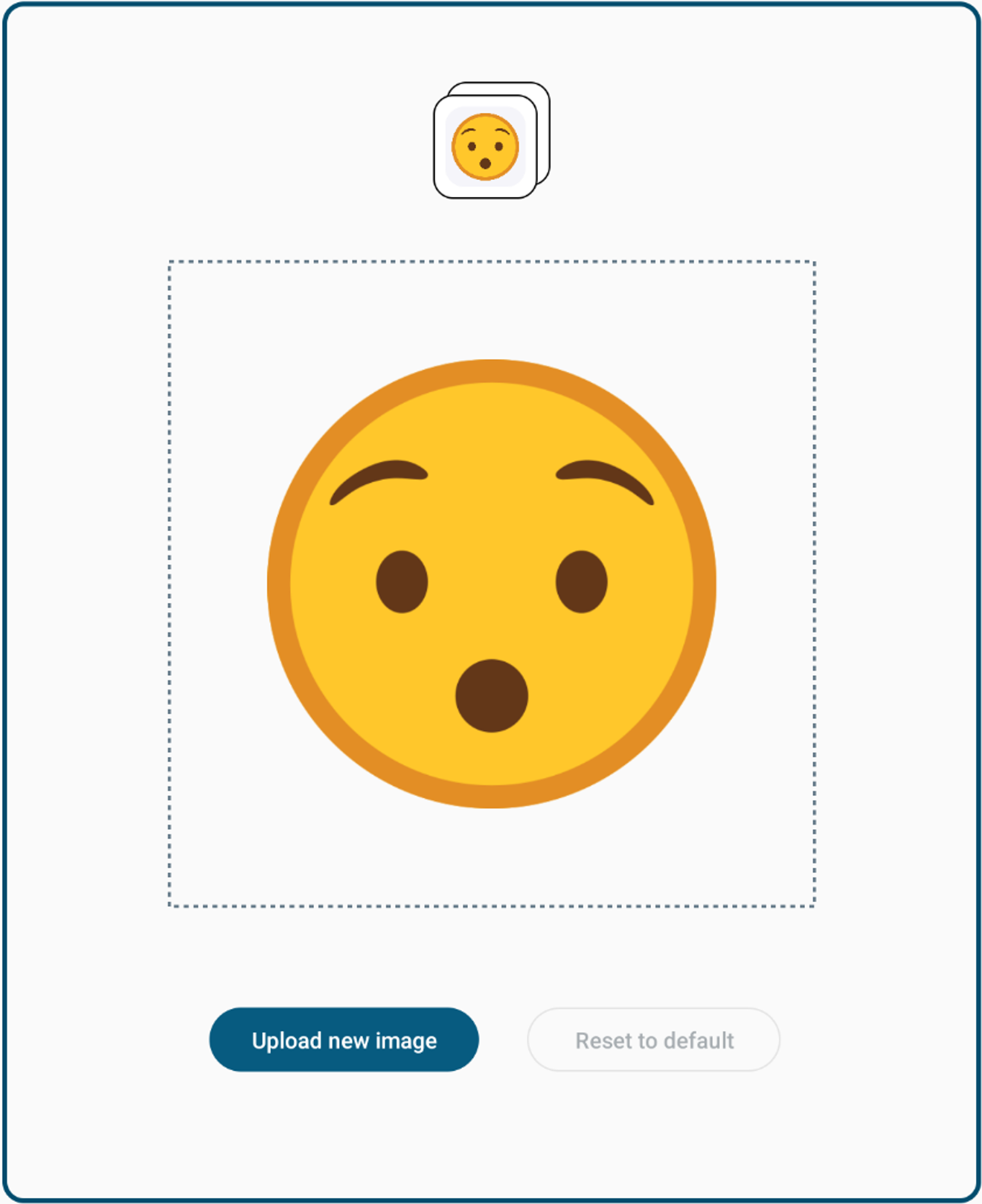
Tap Upload new image to open a menu open providing options for choosing an image.
Change the stamp or cube face image by:
Tapping an image in the list of recent images
Tapping the
 in the upper-left corner of the screen and browsing to an image in one of the Open from locations.
You can also connect a USB drive to the display's convenience panel and browse to an image saved on the USB drive. The USB drive name will appear in the list of Open from locations.
To reset to the default stamp or cube face image
From the Home screen, tap Apps
.Tap SMART Tool Explorer
.Pick up a stamp or cube.
Tap the stamp or cube face that features the image you want to change on the middle of the display's screen.
The current image assigned to the stamp or cube face appears in the middle of the screen. The default image appears at the top.
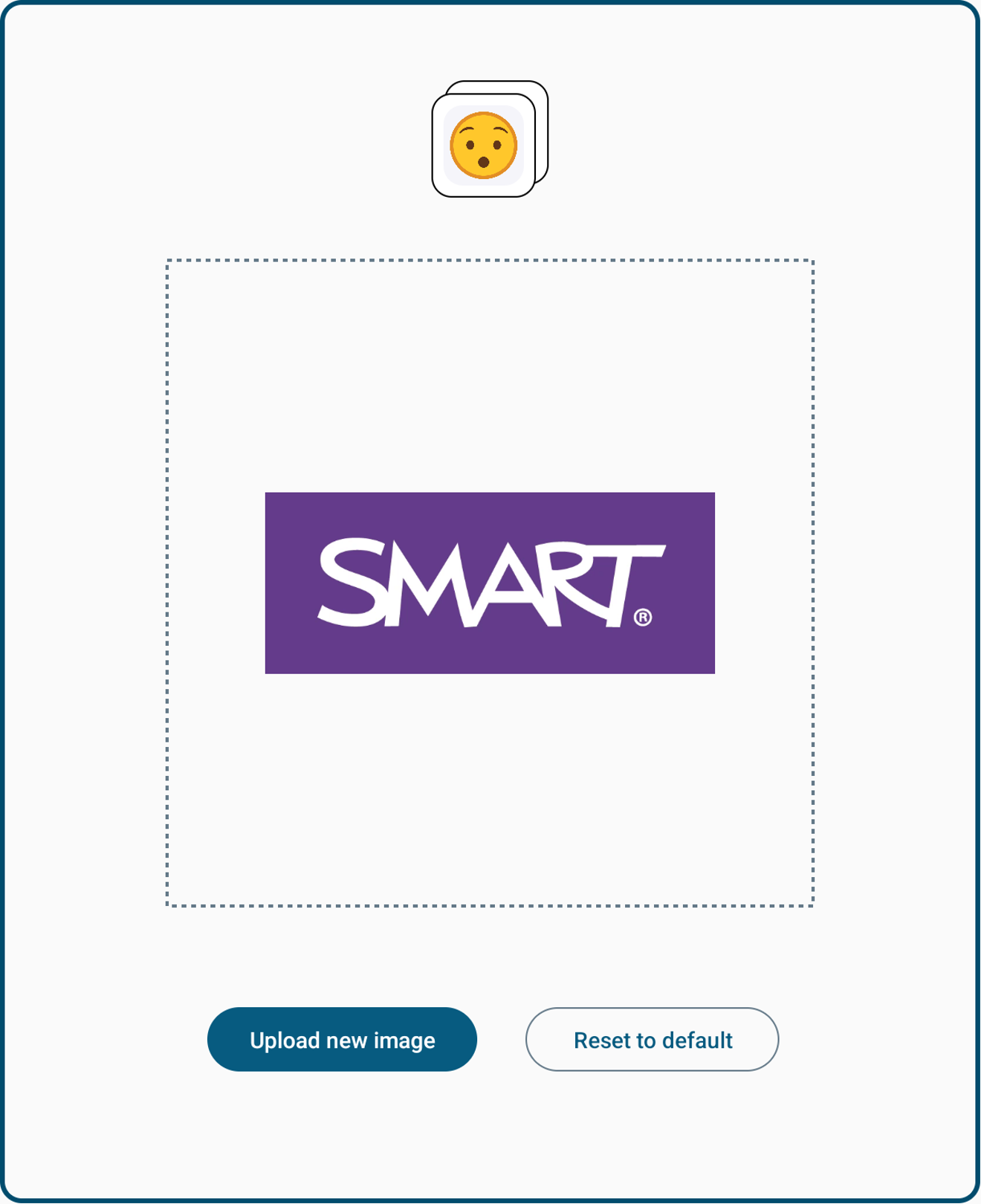
Tap Reset to default.
By default, the Recent dialog appears.
The stamp or cube face image is now reset to the default image.