Connecting to a wired or Wi-Fi network
Set up either a wired (Ethernet) or Wi-Fi network connection to access the internet.
 Connecting using a wired (Ethernet) connection
To connect to the internet using a wired connection, first connect the network cable, then configure the settings from the Chrome desktop.
To connect using a wired connection
If the SMART Board interactive display is connected to a network, connect one end of the network cable to the SMART Chromebox G3’s LAN port and connect the other end of the cable to the display.
OR
If the SMART Board interactive display is not connected to a network, connect the network cable to the SMART Chromebox G3 and the other end to a network outlet.
Turn on the SMART Chromebox G3 (if necessary) and switch the SMART Board interactive display’s input to the Chrome OS.
Click the Chrome desktop’s Status tray to open it.

Click
 to open the Settings window.
Click Network.
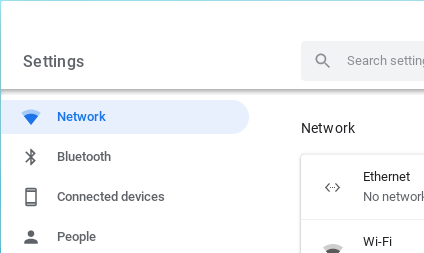
Select the Ethernet connection.
Connecting using Wi-FiIf you are not using a wired network connection, connect to a Wi-Fi network to access the internet on the Chromebox.
To connect to Wi-Fi
Open the Settings window as described in the previous procedure and click Network.
Enable Wi-Fi.
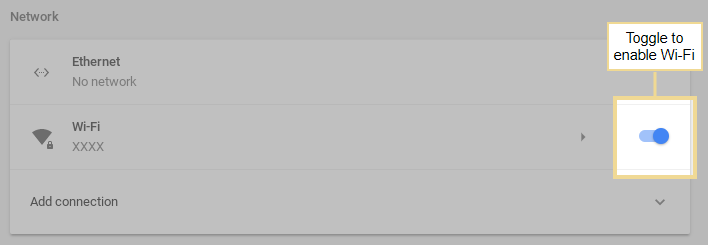
Click
 and select the Wi-Fi network you want to connect to. Enter the network password, if required.
Turn on Automatically connect to this network.